Appearance
How to connect feed to Meta catalog
This article will guide you through the process of connecting your Meta feed to your Meta Catalog the recommended way. The process is fairly simple and everything is described in this guide.
Make sure the following list of completed before continuing to the next steps.
1. Configured Meta Integration: In order for us to connect your feed til Meta, you need to connect Feedr to Meta using our Meta Integration. Please follow this guide: Configure Meta Integration
2. Meta Catalog: You must have a Meta Catalog. If you don't, please follow this guide: Create a new Meta Catalog
3. A Meta Product Feed: You must have created a Meta Product Feed in Feedr.
Connect feed to catalog
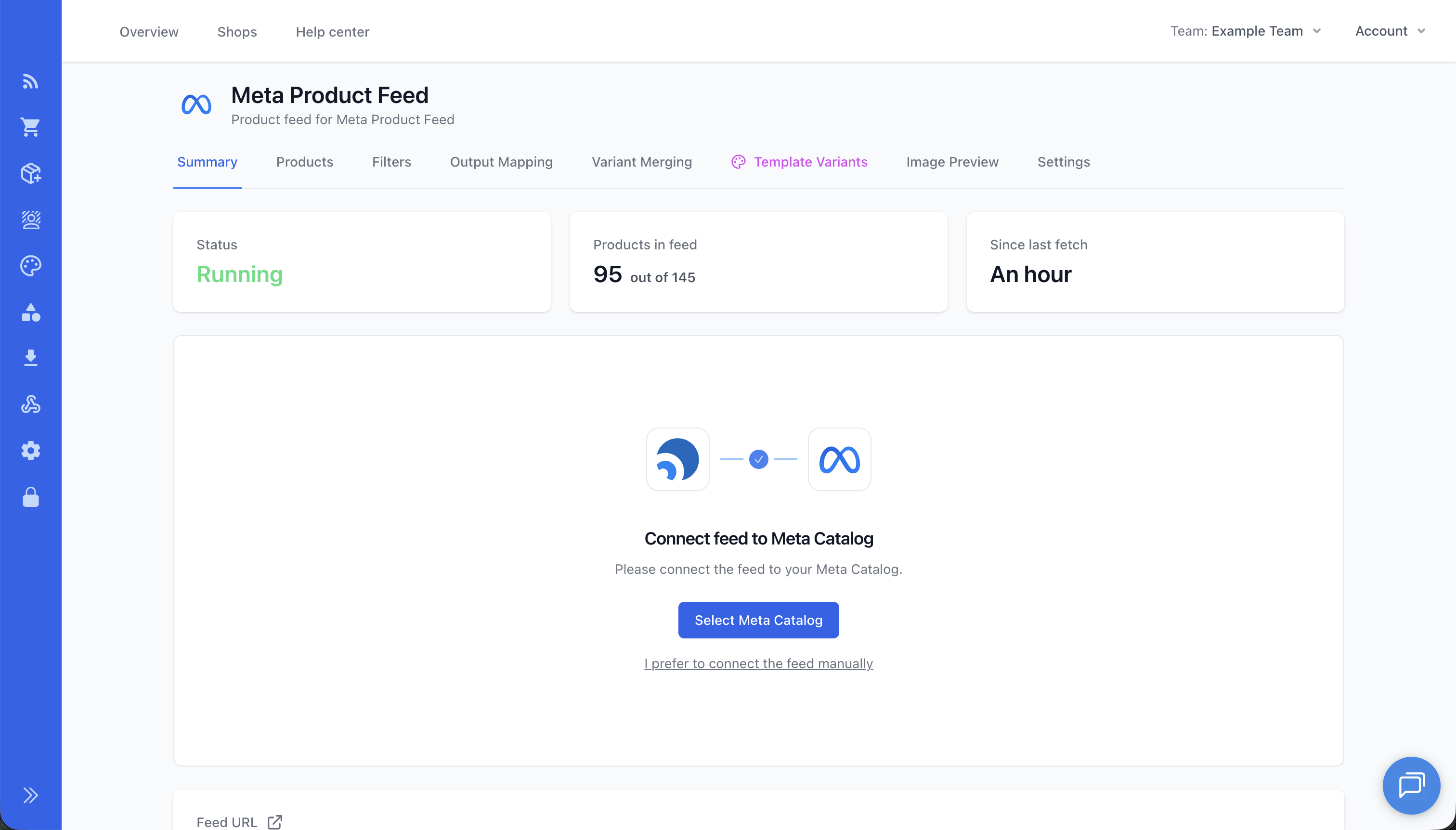
Start by navigating to your Meta Product Feed in Feedr. On the feed page, you'll see the section to connect the feed to your Meta Catalog. Click on "Select Meta Catalog" and select the Meta Catalog you want to connect the feed to.
Once you've selected your Meta Catalog, you'll get the option to connect the feed as primary or supplementary source. Depending on the Meta Catalog configuration, you should follow the recommendations shown.
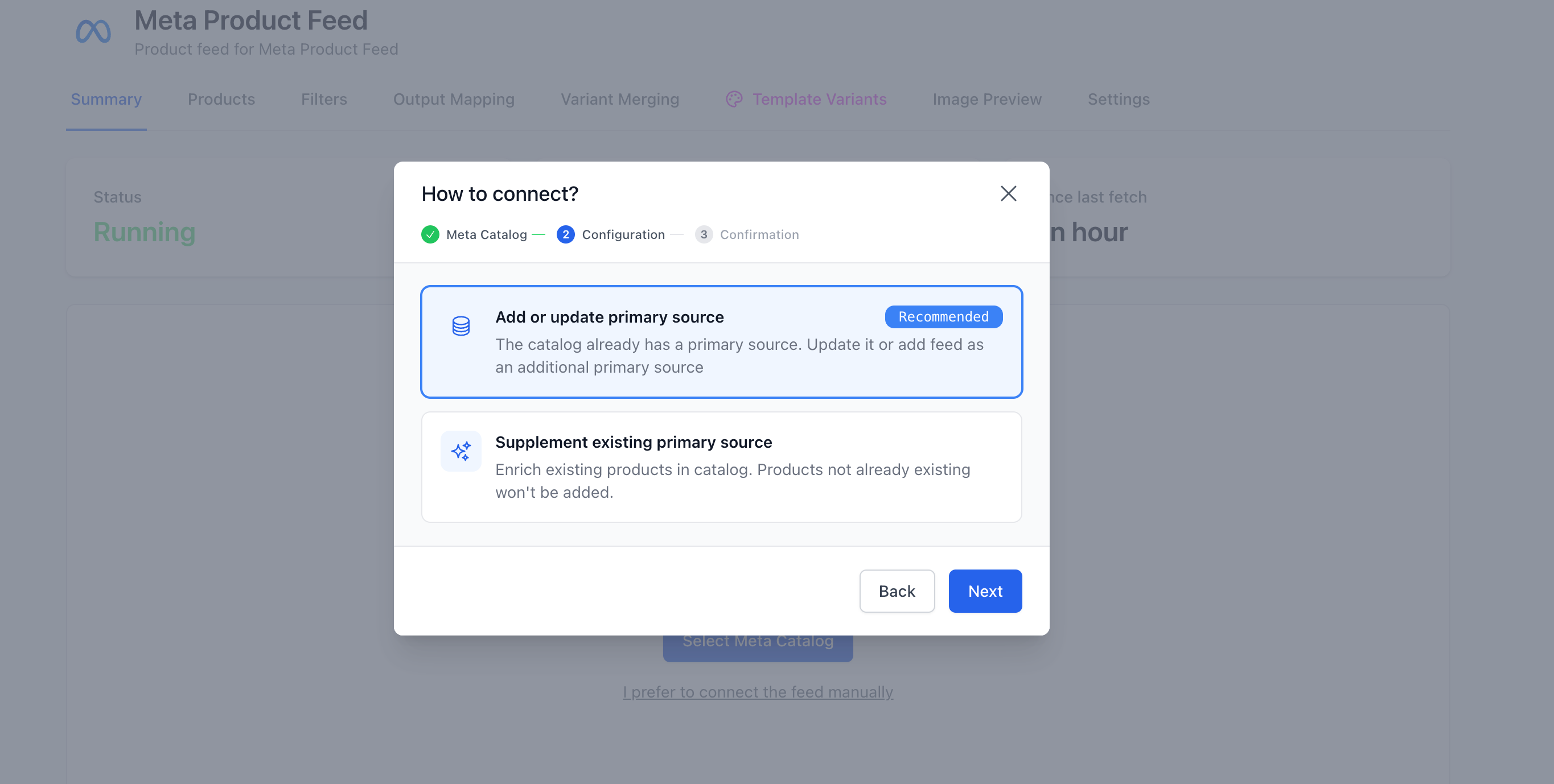
There are a few different situations you might be in. Skip to the section that matches yours:
- Primary source already exists in Meta Catalog
- My Meta Catalog is connected to Shopify or WooCommerce app
You can also manage existing data sources and request that Meta fetches your feed now.
1. Primary source already exists in Meta Catalog
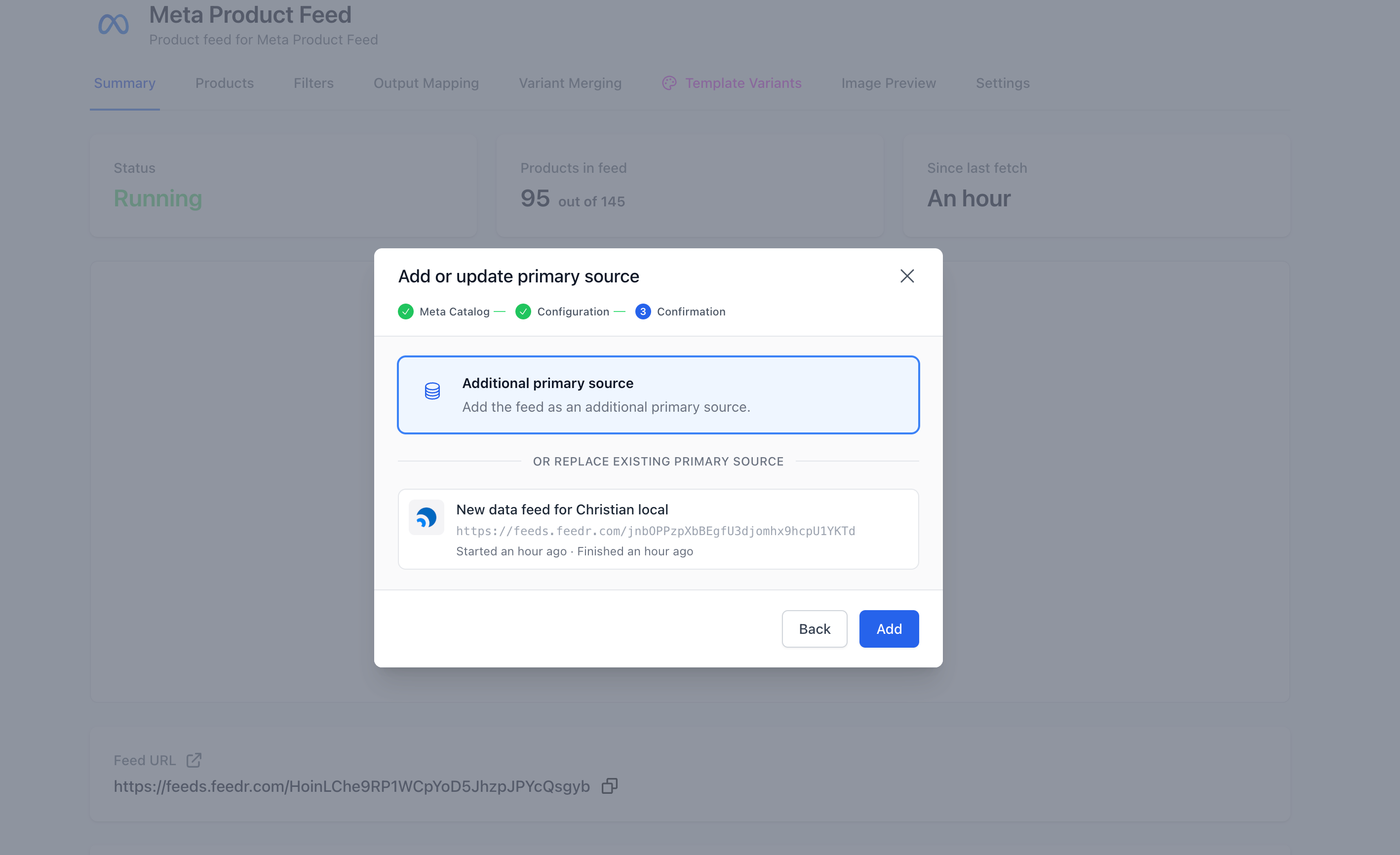
If you want to add your feed as a primary source and the Meta Catalog already has a primary source, you have two choices: replace it with your Feedr feed, or add your Feedr feed as an additional primary source.
You also have the option of adding the Feedr feed as a supplementary source in your Meta Catalog.
Replace the existing primary source
Make sure the product IDs match
Before you replace the primary feed, check that the product IDs in your Feedr feed have the same format as the ones already in Meta. If they don't, Meta will treat every product as new and your tracking will likely break.
See how to compare the IDs in the manual setup article. If the IDs don't match, adjust the id mapping in your feed first - and reach out to support if you're unsure.
To replace the existing primary feed with your Feedr feed, click on the primary feed to replace and click Replace.
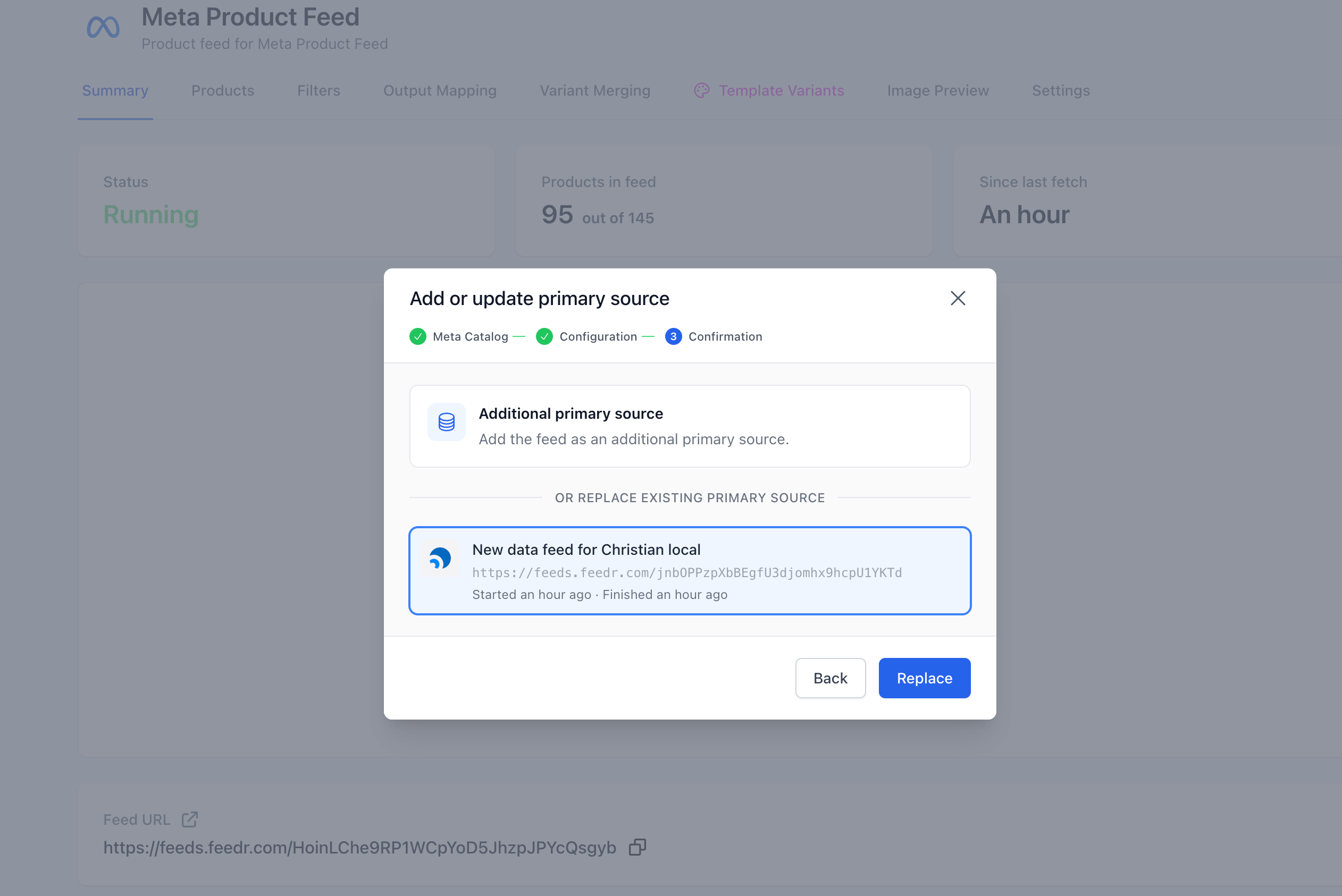
After you confirm, Feedr swaps the primary data source for your feed. The previous source is detached from the catalog.
Add the Feedr feed as a supplementary feed
Read this before adding a supplementary feed
- Feed filtering won't work as expected. Products that are in the primary feed will still appear in Commerce Manager, just without the Feedr-specific data (such as templates). If you still want to use filtering, see Controlling catalog items in the manual setup article.
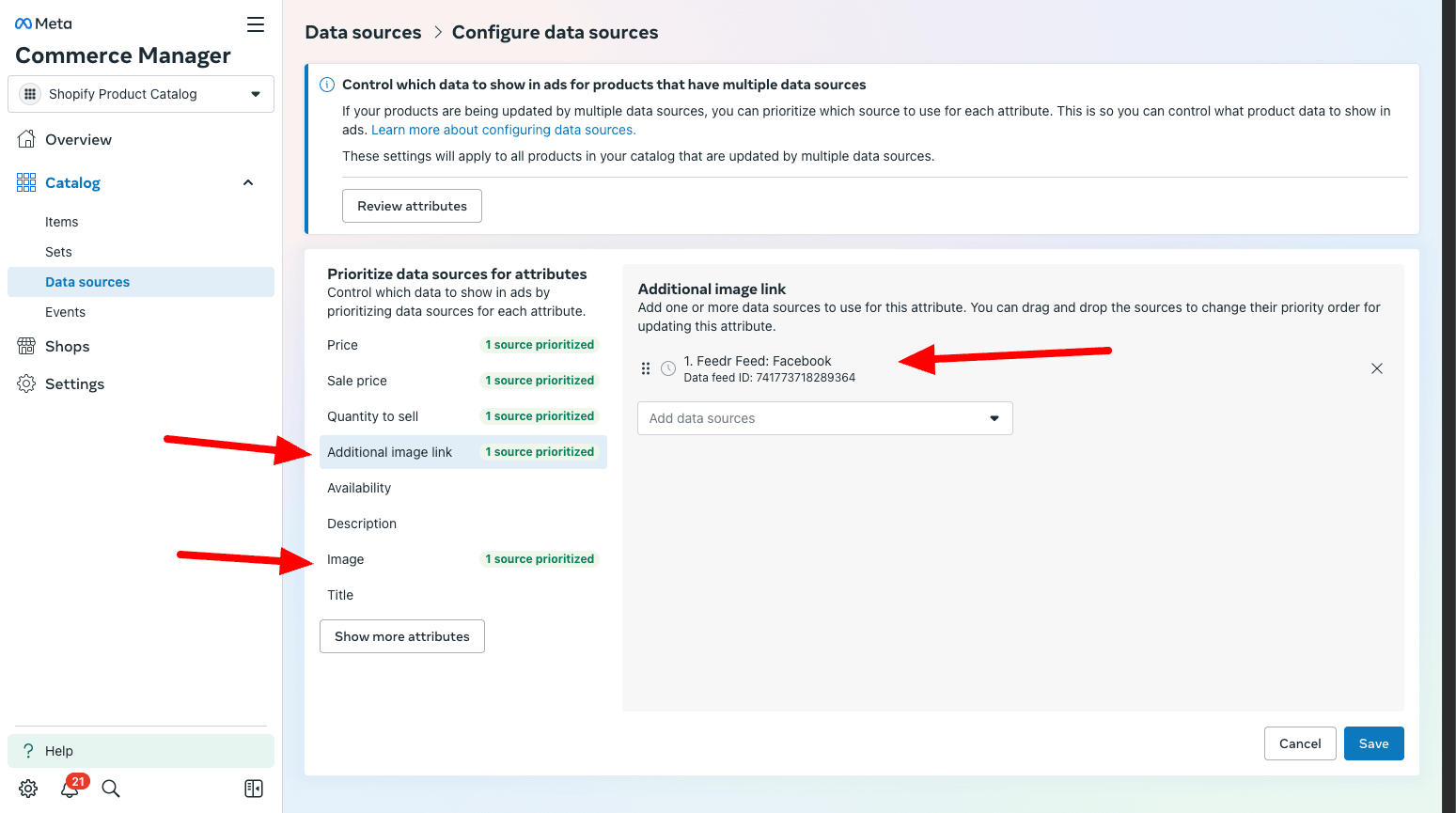
- Feedr's values must take priority over the primary feed. This is configured in Commerce Manager and cannot be set from Feedr - see Configure Data Sources. It's especially important for the Image and Additional image link fields if you use templates.
All other features, including Template Variants, will still work.
To add your Feedr feed as a supplementary feed, click Add as supplementary feed on the primary feed's row in the modal.
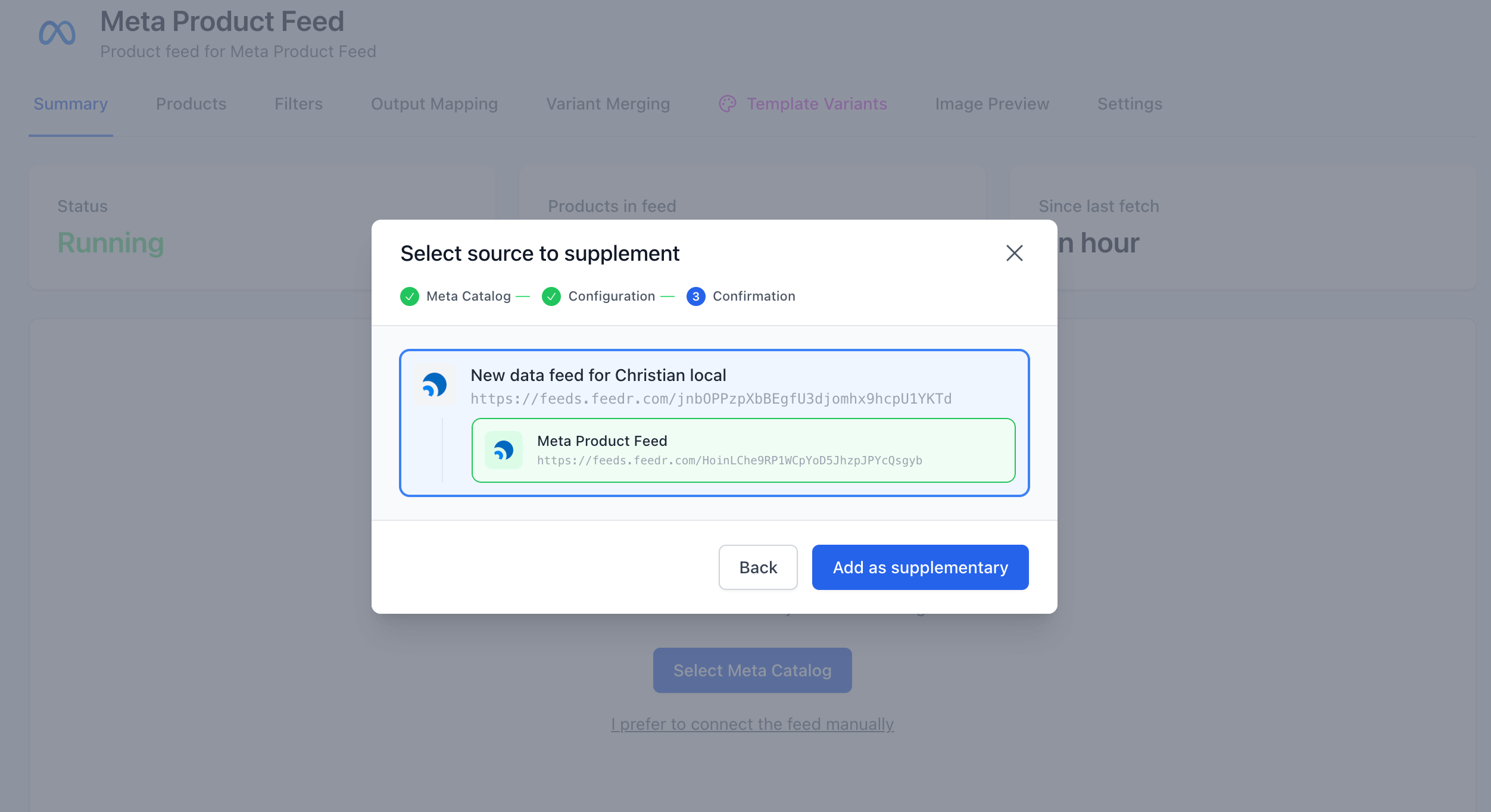
The Feedr feed will be attached as a supplementary feed on top of the selected primary.
2. You already have a Meta catalog with a connected Shopify or WooCommerce app
If your catalog's primary data source is a Shopify or WooCommerce app, you can add your Feedr feed on top of it as a supplementary feed.
Read this before adding a supplementary feed
- Feed filtering won't work as expected. Products synced by the app will still appear in Commerce Manager, just without the Feedr-specific data (such as templates). If you still want to use filtering, see Controlling catalog items in the manual setup article.
- Feedr's values must take priority over the app. This is configured in Commerce Manager and cannot be set from Feedr - see Configure Data Sources. It's especially important for the Image and Additional image link fields if you use templates.
Click the catalog button on the feed's page to open the modal. The Shopify or WooCommerce app shows up as a primary data source.
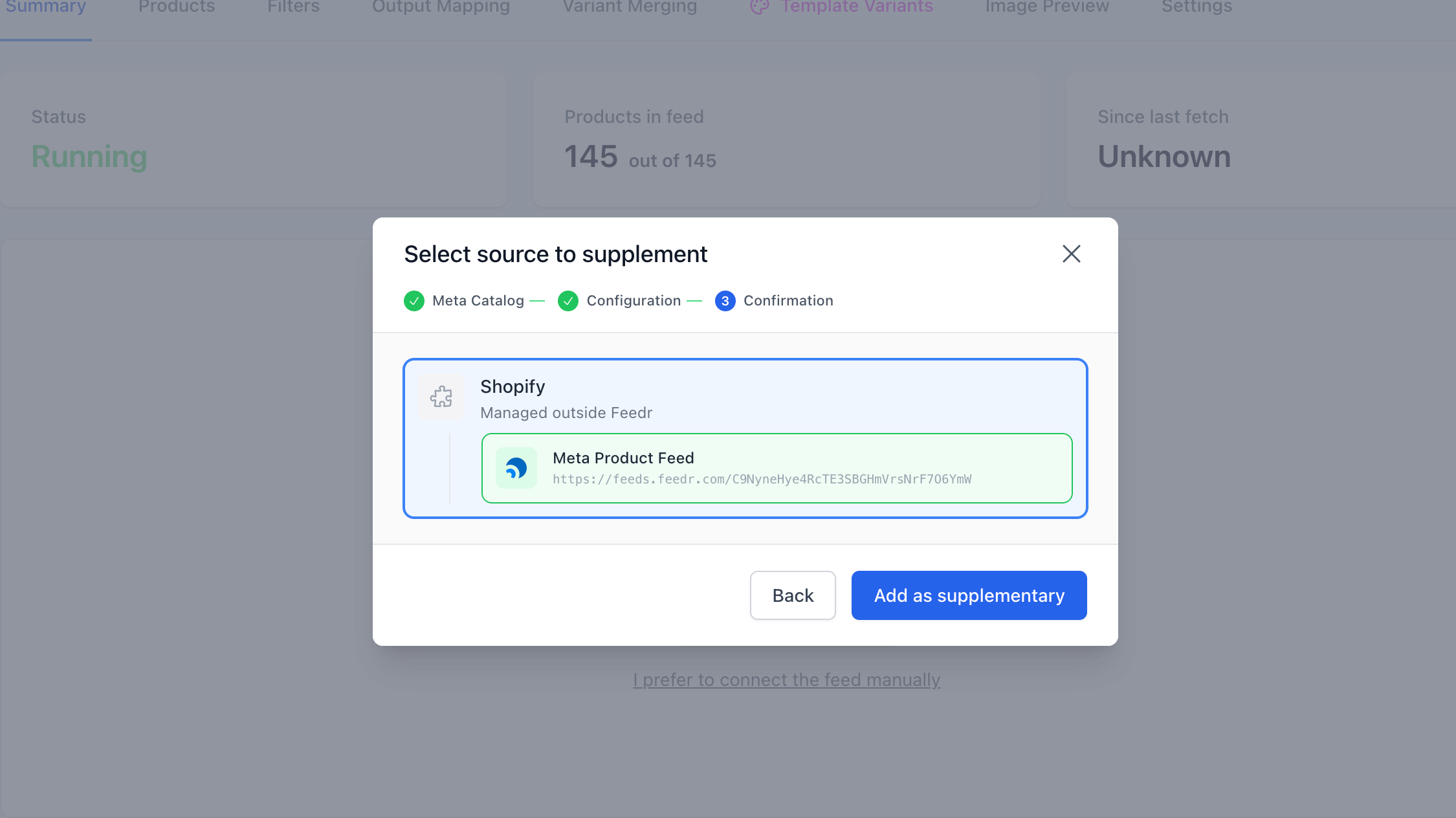
Click Add as supplementary feed on the app's row.
Your Feedr feed is now attached as a supplementary feed on top of the app source.
Manually requesting a fetch from Meta
By default, Meta fetches your feed on a schedule. If you've just made changes and want them reflected in Meta right away - for example before launching an ad - you can ask Meta to fetch the feed now.
On the catalog's connected view, each data source with a previous upload shows a Request Fetch button. Click it and Meta will queue a fetch.
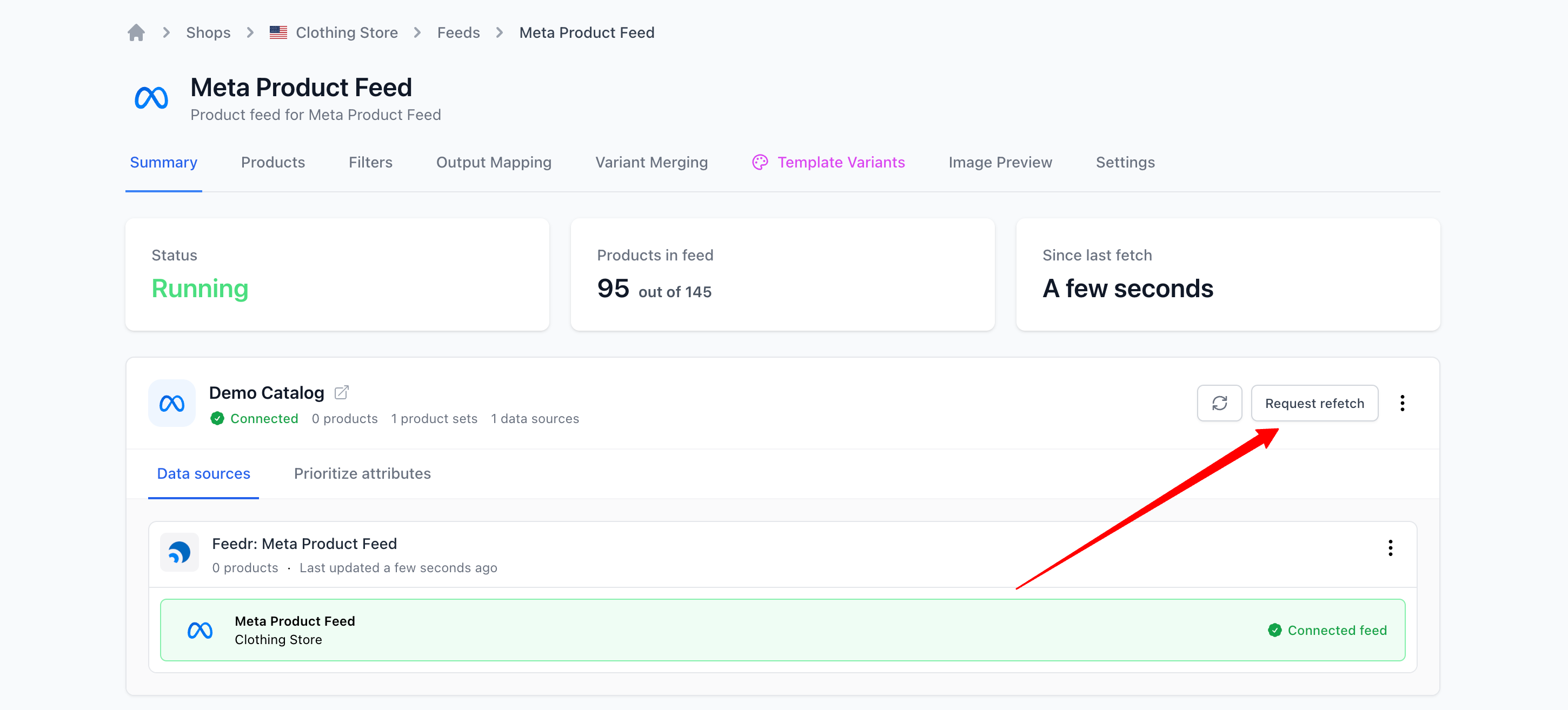
The button is disabled while an upload is already in progress.
Controlling Catalog Items
If you need to add your Feedr feed as a supplementary feed, feed filtering will not work as expected.
However, this can be solved by making a product set containing only the products coming from your Feedr feed.
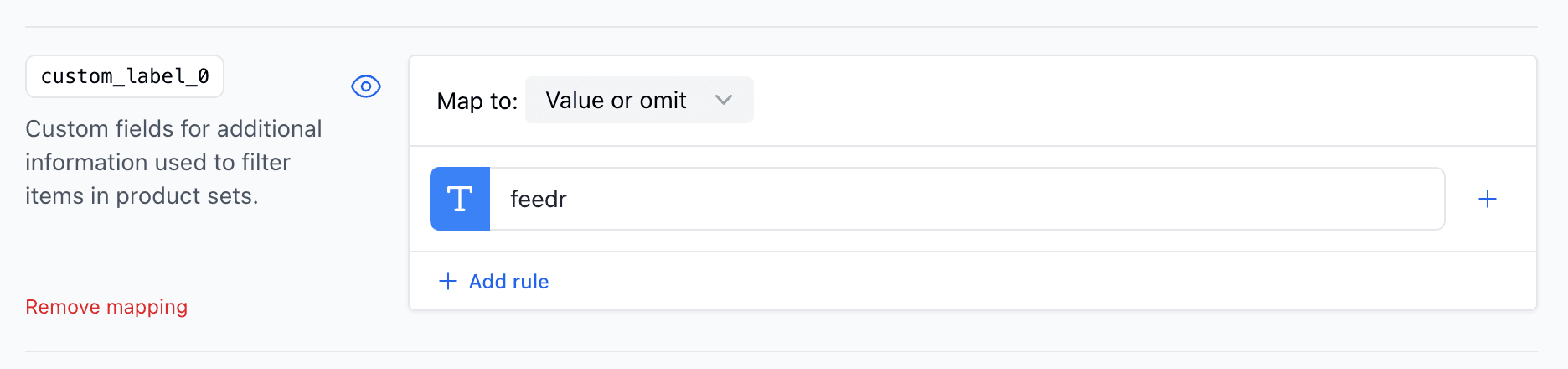
To start go to the Output mapping tab and scroll down to one of the custom_labels for instance custom_label_0. Here you should add something that you can later find in Commerce Manager, for instance "feedr". Afterwards hit Save.
INFO
If you do this after you have added the Feedr feed in Commerce Manager, you need to refetch the feed to see the changes.
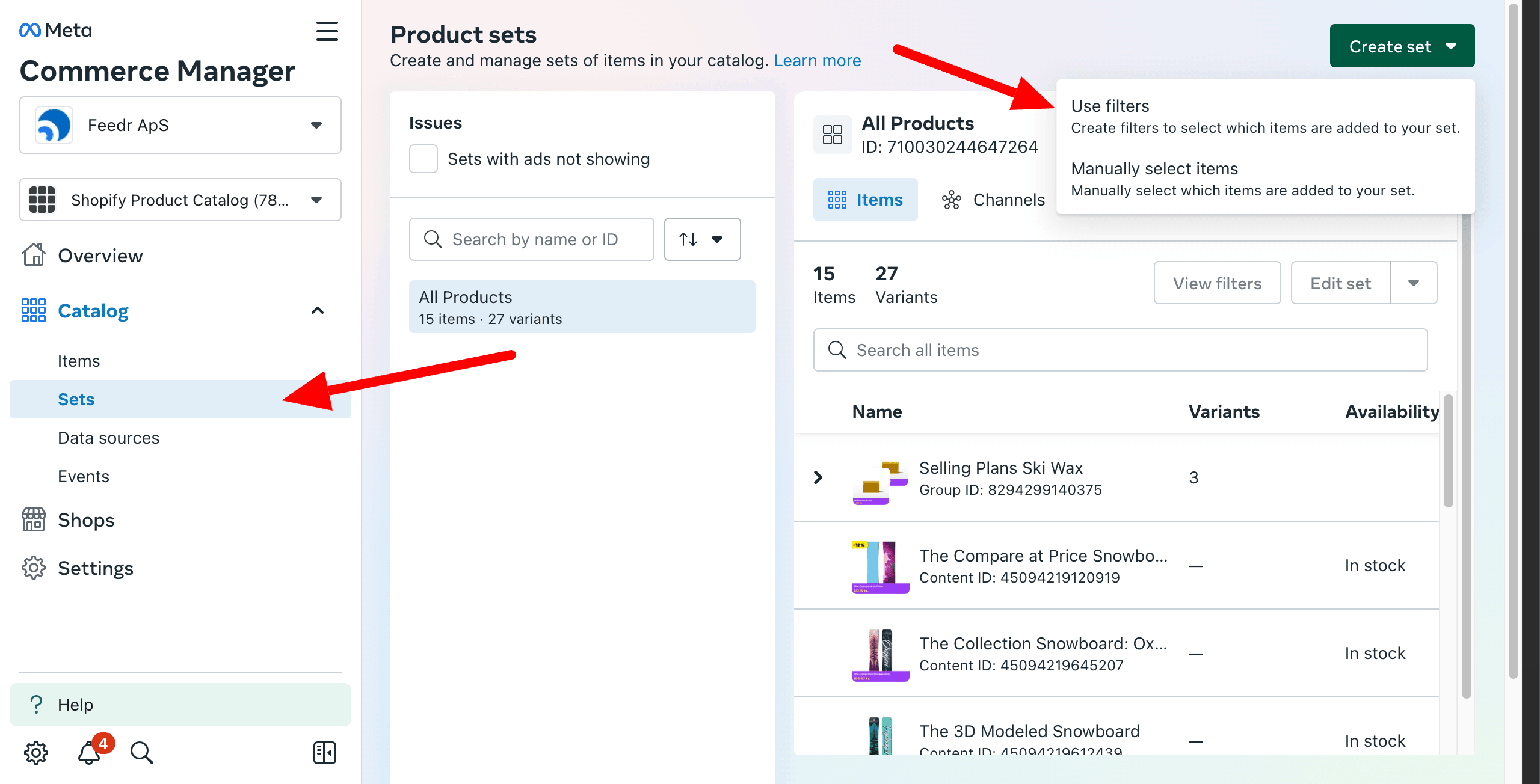
Now you can go into the Sets tab and create a new product set.
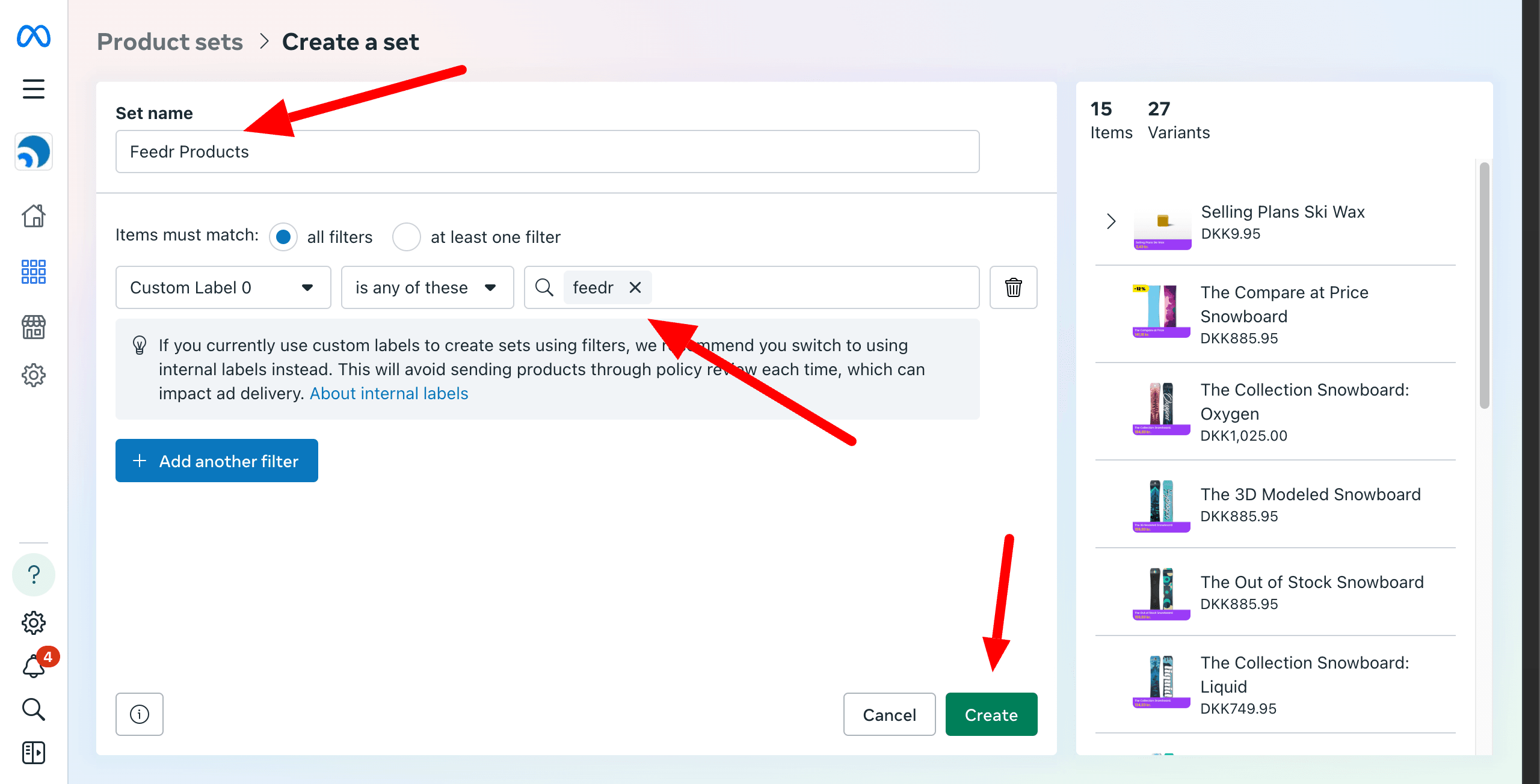
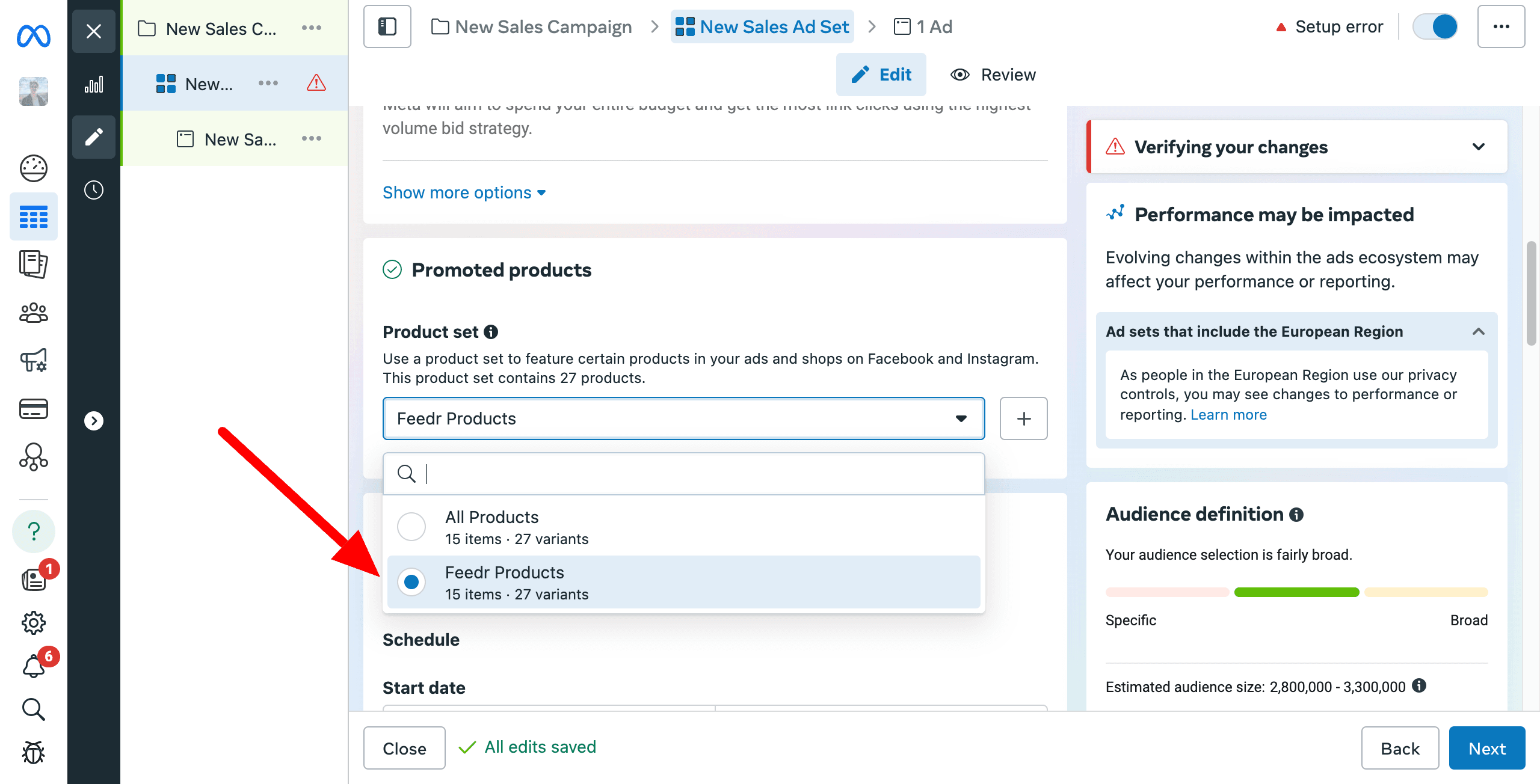
In the next page you have to select custom label you set up before and say it must contain the word "feedr".
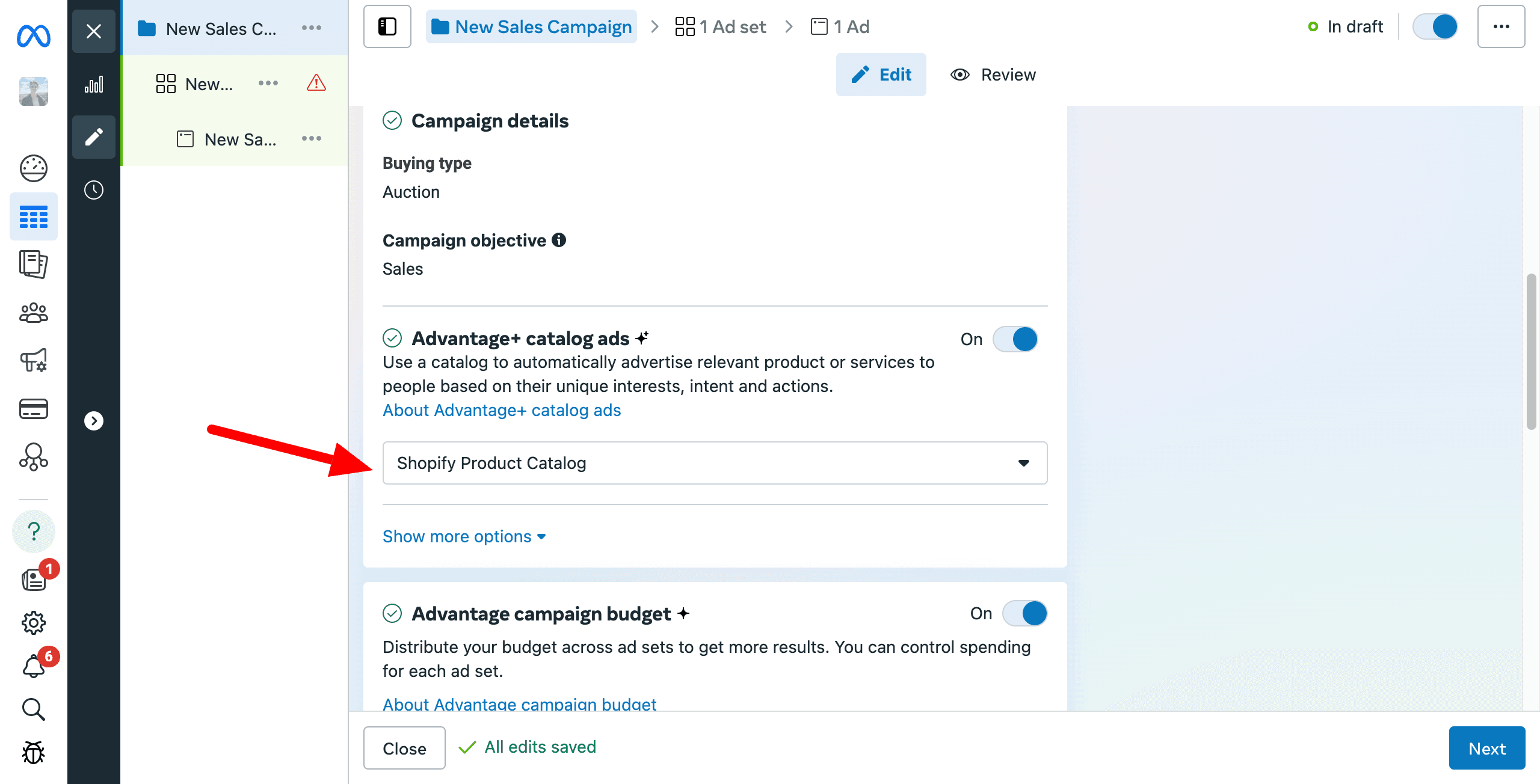
Now you can select your new product set in your ads. Just make sure you use it in all of your ads, otherwise you might get unexpected results.
Configure Data Sources
When adding a supplementary feed, you need to configure the catalog to make sure the Feedr values has priority over the primary feed/app.
Go to the Catalog and select the Data sources tab. Here you should press Configure sources in the top right corner.
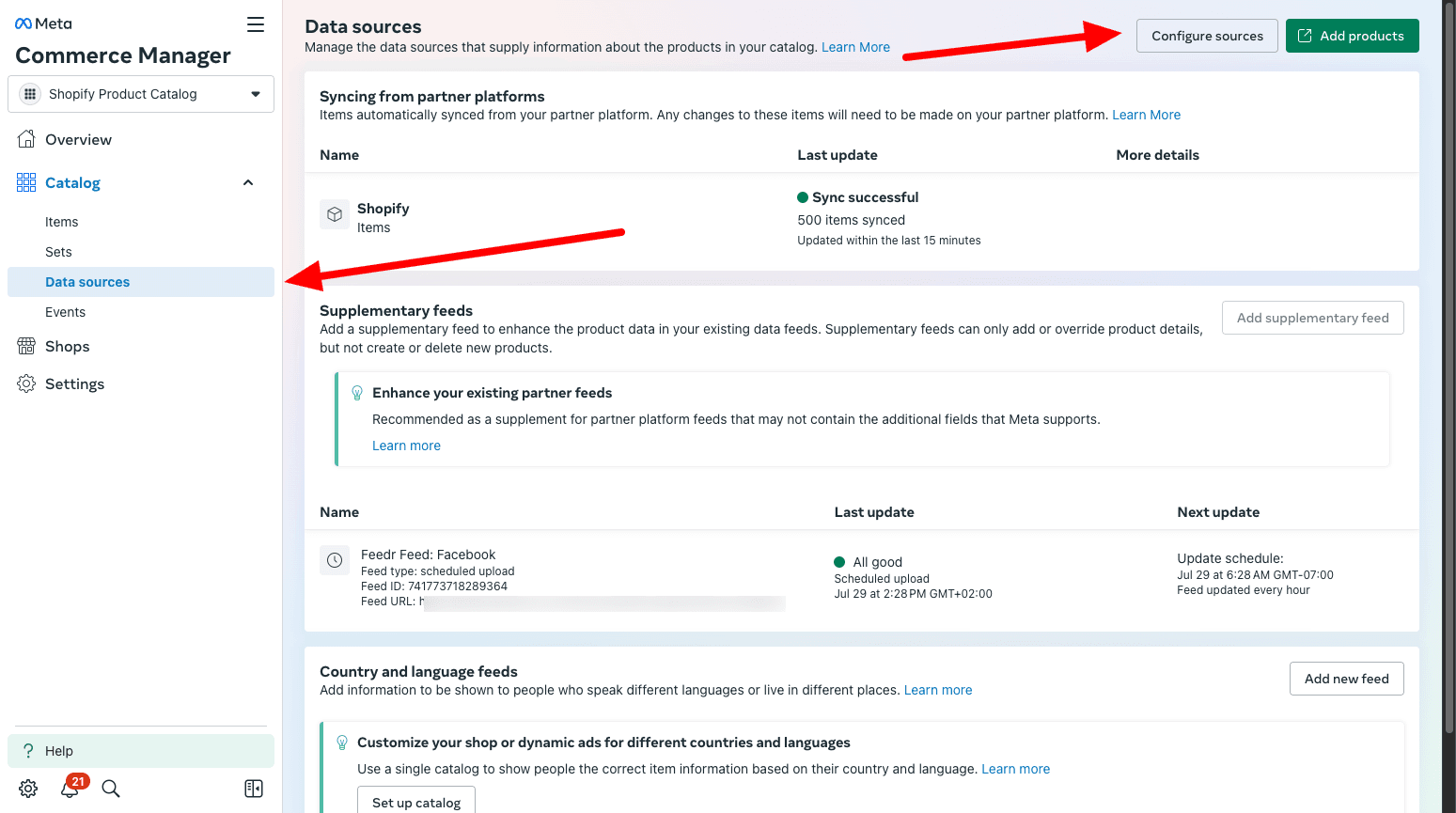
In here you need to make sure that the Feedr values has priority over the primary feed/app.
INFO
It is especially important to choose the Image and Additional image link if you use templates.