
How to use filters
You might want to filter the products in your feed. This can be done using filters. Filters are groups of conditions that the products have to meet in order to be included or excluded from the feed. We also support manual filtering, where you select the products you want to include or exclude.
Filters are applied on a feed-basis, so you can have different filters for different feeds. You find them by opening the feed and clicking Filtering in the menu.
Filter types
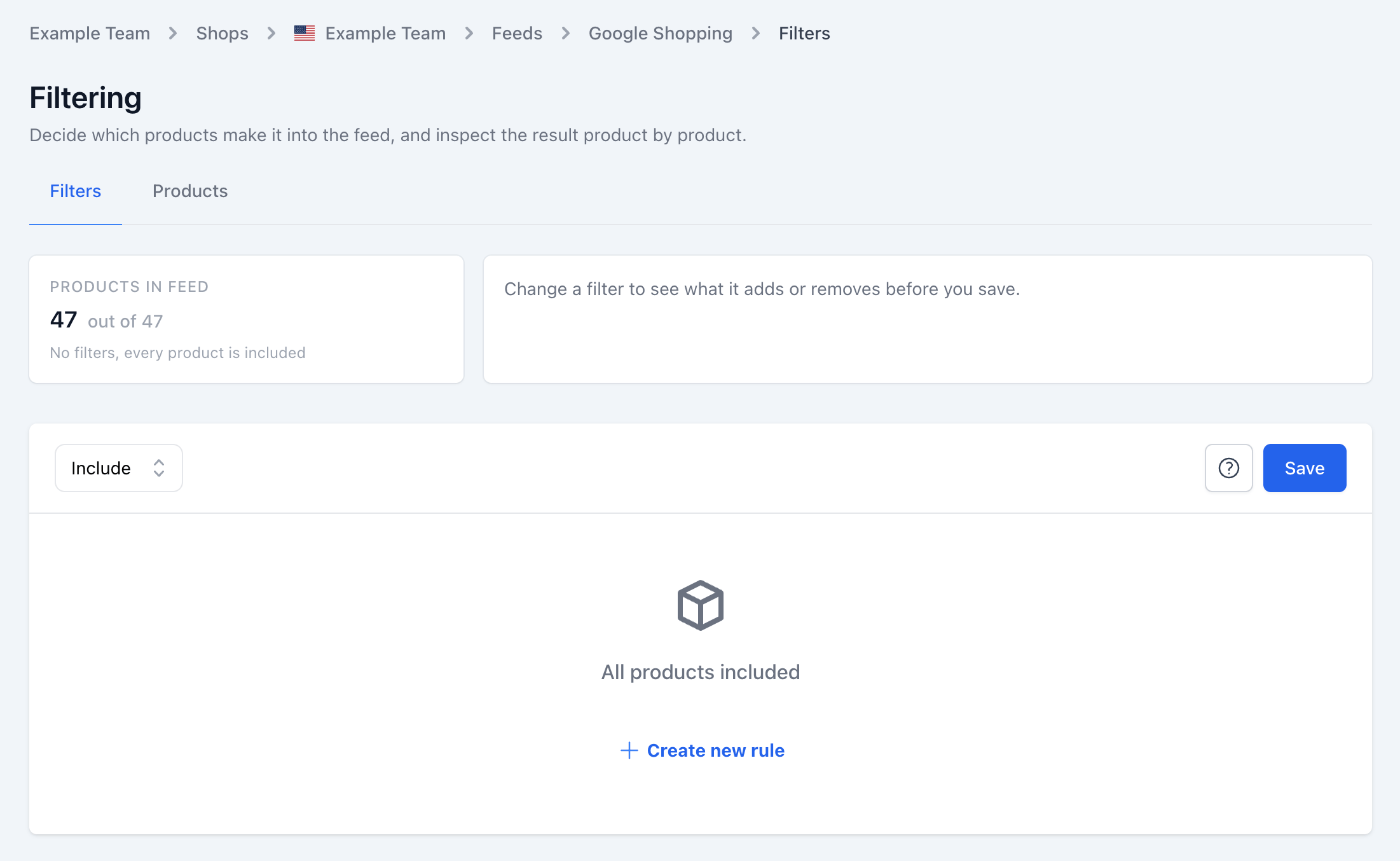
We support three types of filters: Inclusion, Exclusion and Manual filtering.
Inclusion
Inclusion based filtering works by only including products that meet the specified rules. For example, you can create a filter that only includes products that are in stock.
INFO
Please note that all products will be included if no rules are added and this is the default behavior.
Exclusion
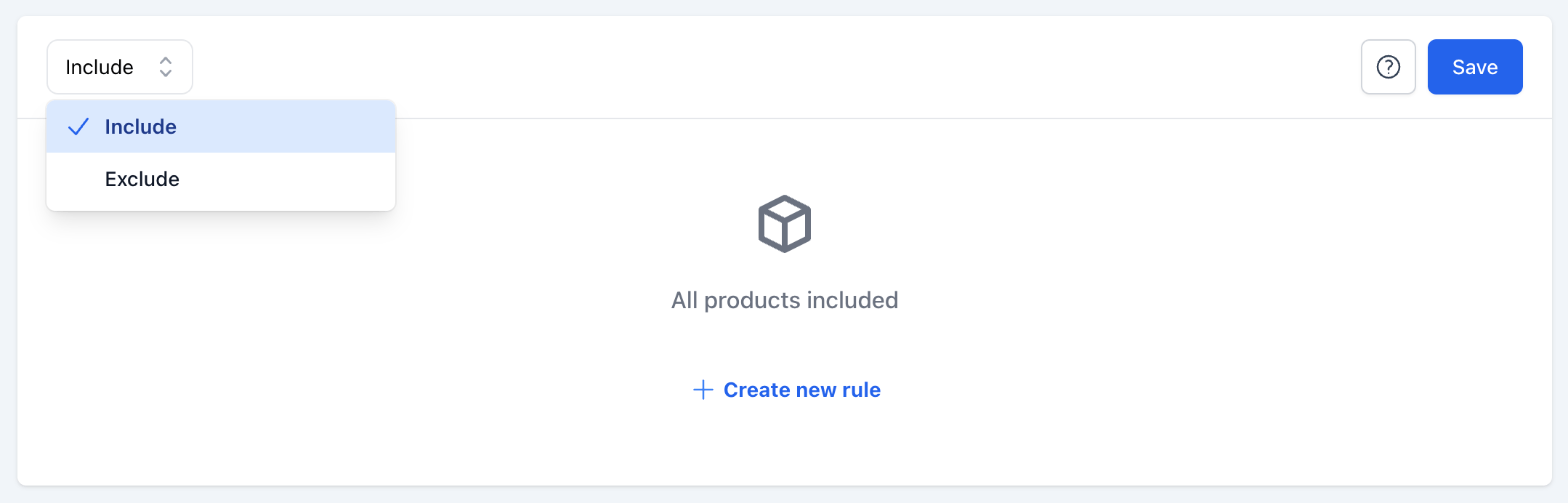
Exclusion based filtering works by excluding products that meet the specified rules. For example, you can create a filter that excludes products that are out of stock.
INFO
Please note that all products will be excluded if no rules are added, except the products you have included manually.
Manual filtering
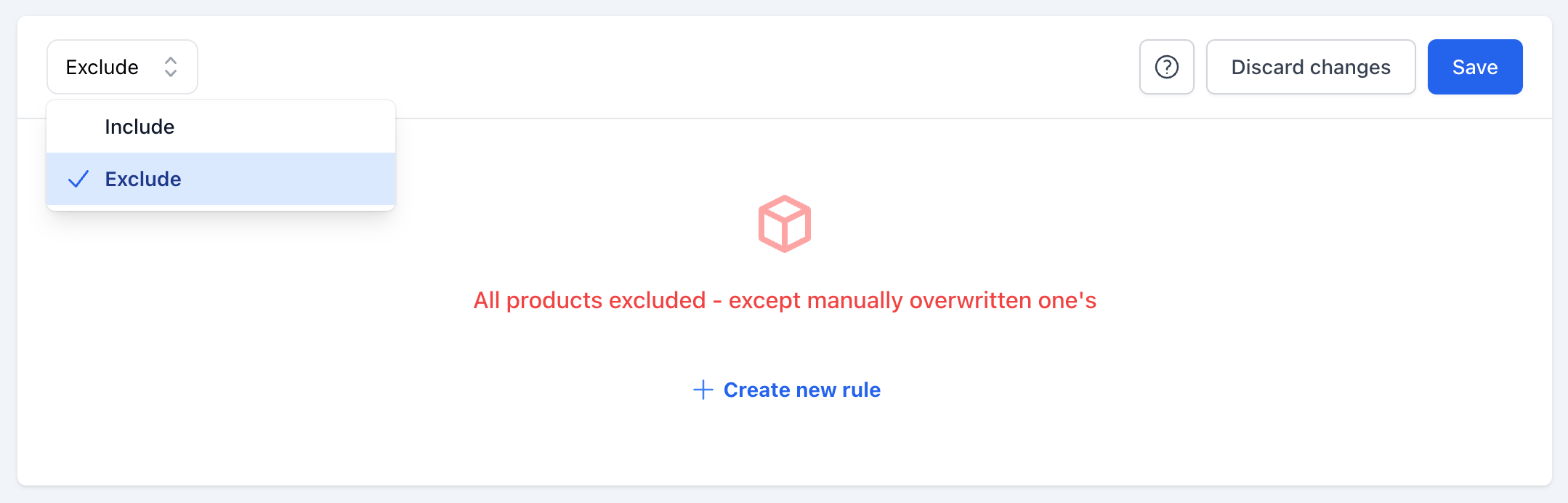
Manual filtering allows you to select the products you want to include or exclude from the feed. Manual filtering is useful when you want to have full control over the products in the feed.
Manual filters can be used in combination with inclusion and exclusion based filters, but manual filters will always take precedence. You'll find it on the Products tab of the Filtering page, next to Filters.
In order to manually include or exclude products, you have to select the products from the list or search for them. When you select products, the Include, Exclude and Clear buttons appear. Clear removes the manual choice, so the products follow your filters again. The dropdown next to the search shows Included products by default. Switch it to All products, Excluded products or Manual overwrites to see the rest.
Next to each product, you'll see a badge: Included, Excluded, Manually included or Manually excluded.
Preview your changes
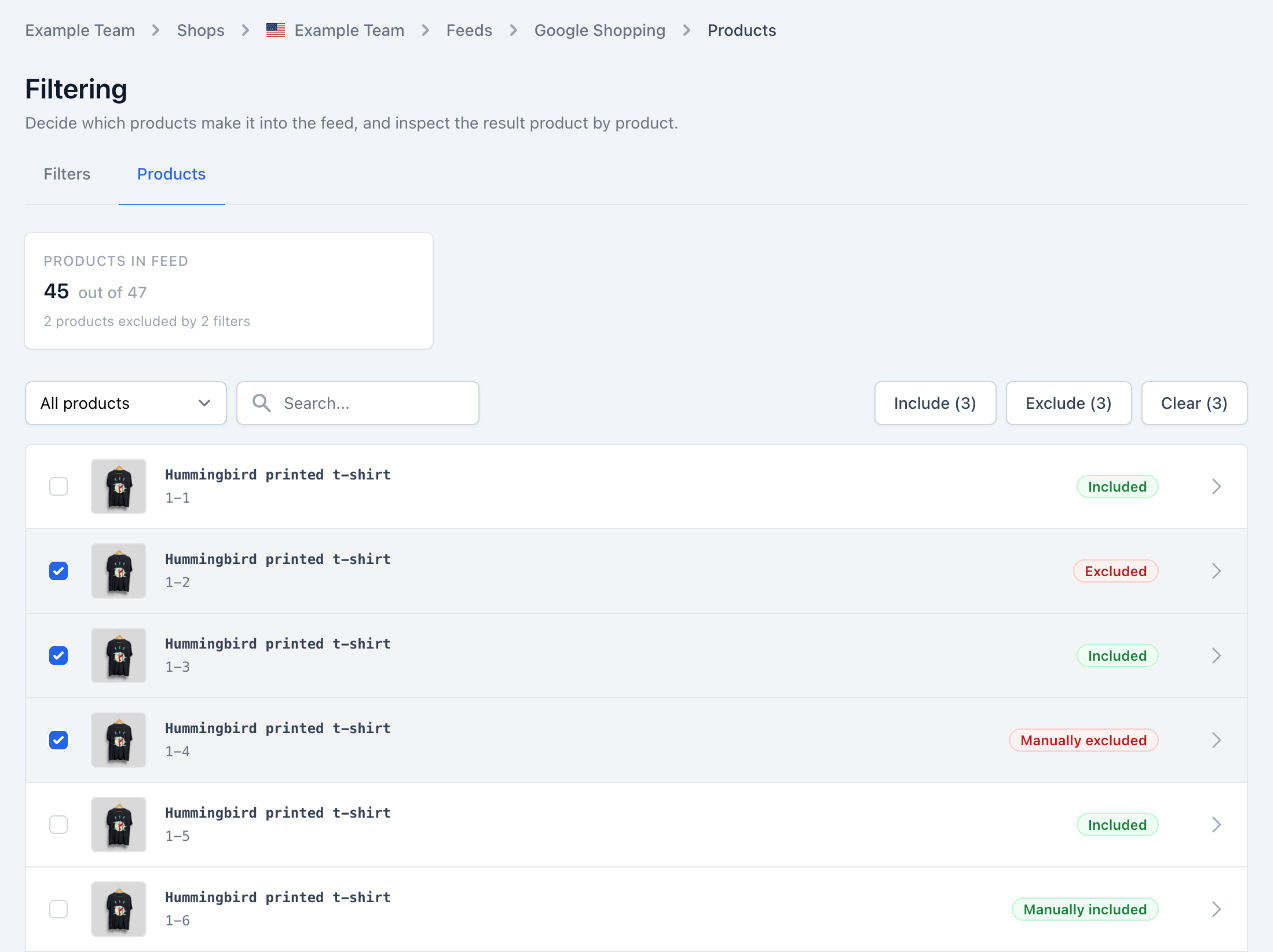
While you edit filters, you can see what your changes do before you save them. At the top of the Filters tab, a With your changes card sits next to Products in feed. It shows:
- How many products the feed would contain, out of all the products in the shop. When variant merging is on, it counts variant groups.
- How many products your edit adds and removes, compared with the saved filters.
Before you change anything, or while a rule is still missing a value, the card shows a short hint instead of numbers. It updates by itself shortly after you stop editing.
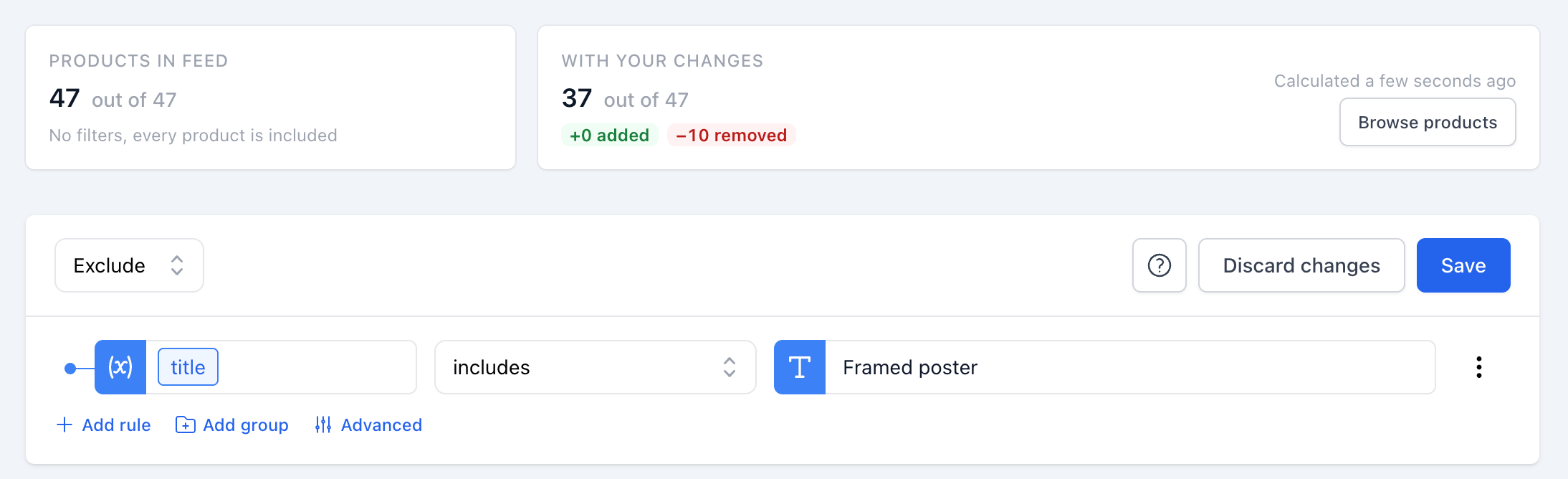
If some products could not be checked against a rule, the card shows a small chip such as 3 not checked. Hover over it for details: those products keep their current place in the feed.
Click Browse products to see the products themselves. The panel has four tabs: Included, Excluded, Added and Removed, and you can search by title or product ID. Products you have included or excluded manually on the Products tab count too, and they show a Manually included or Manually excluded badge.
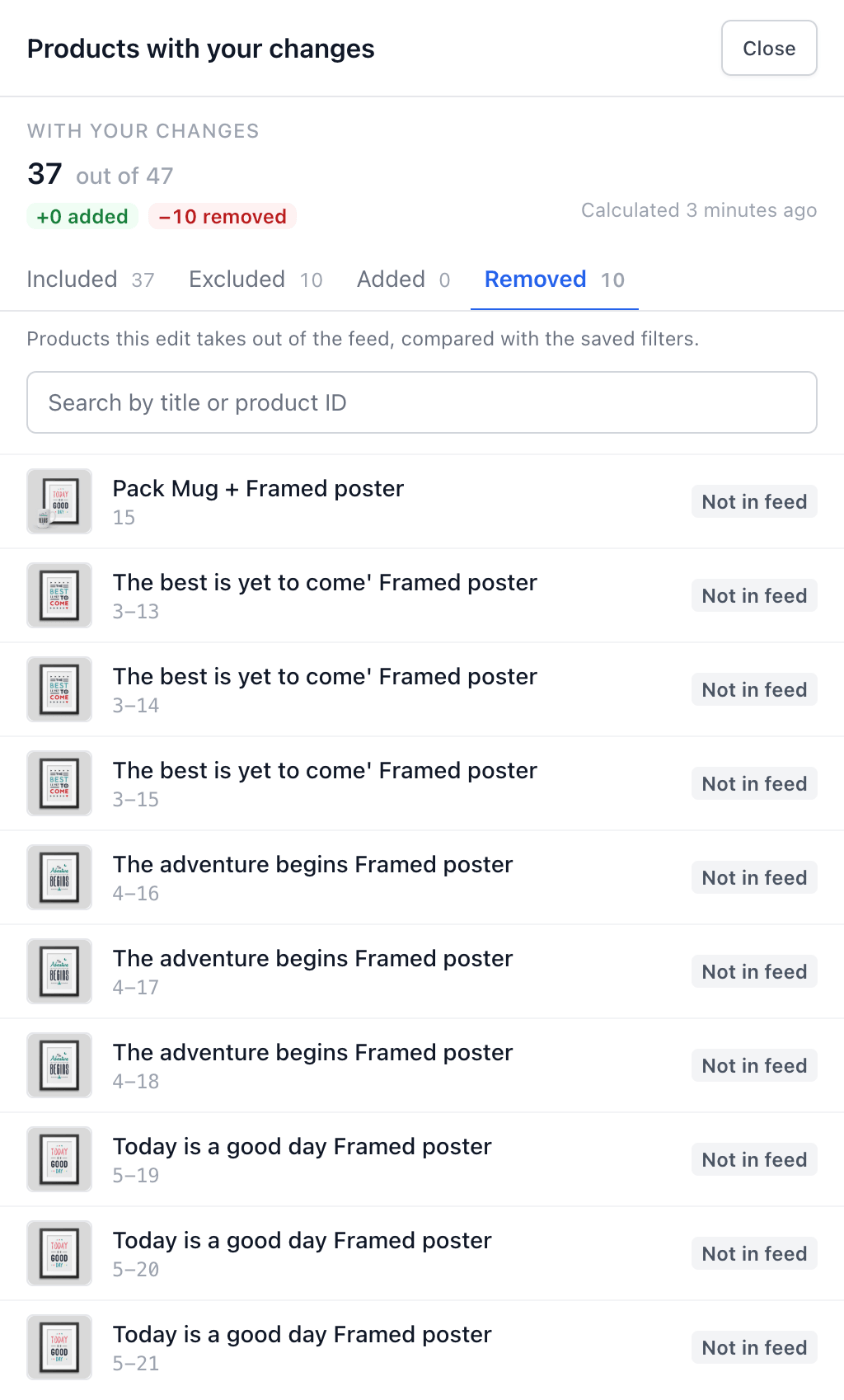
Nothing changes in the live feed until you click Save. To start over, click Discard changes next to Save. The button appears when you have unsaved changes and returns the filters to how they were last saved.
INFO
On very large catalogs, a preview can take up to about a minute. If it takes too long, you can try again or just save.
Only users who can edit the feed see the preview.
Associated product variants
You can create filters based on the associated product variants. This is useful when you want to include or exclude products based on the variants they have.
A common situation is that even bestselling products have some variants that sell better than the rest.
Say you sell pants in different sizes: S, M, L, XL and the S, M and L sizes account for 90% of the sales. When these sizes are out of stock you will lose a lot of potential sales and might want to exclude all the products until you restock.
Criteria
We currently support the following criteria for associated product variants:
- All variants comply with rule group
- Any variant comply with rule group
- Exact number of variants comply with rule group
- No variants comply with rule group
- The number of variants that comply with rule group is below threshold
- The number of variants that comply with rule group is above threshold
- The percentage of variants that comply with rule group is below threshold
- The percentage of variants that comply with rule group is above threshold
How to use?
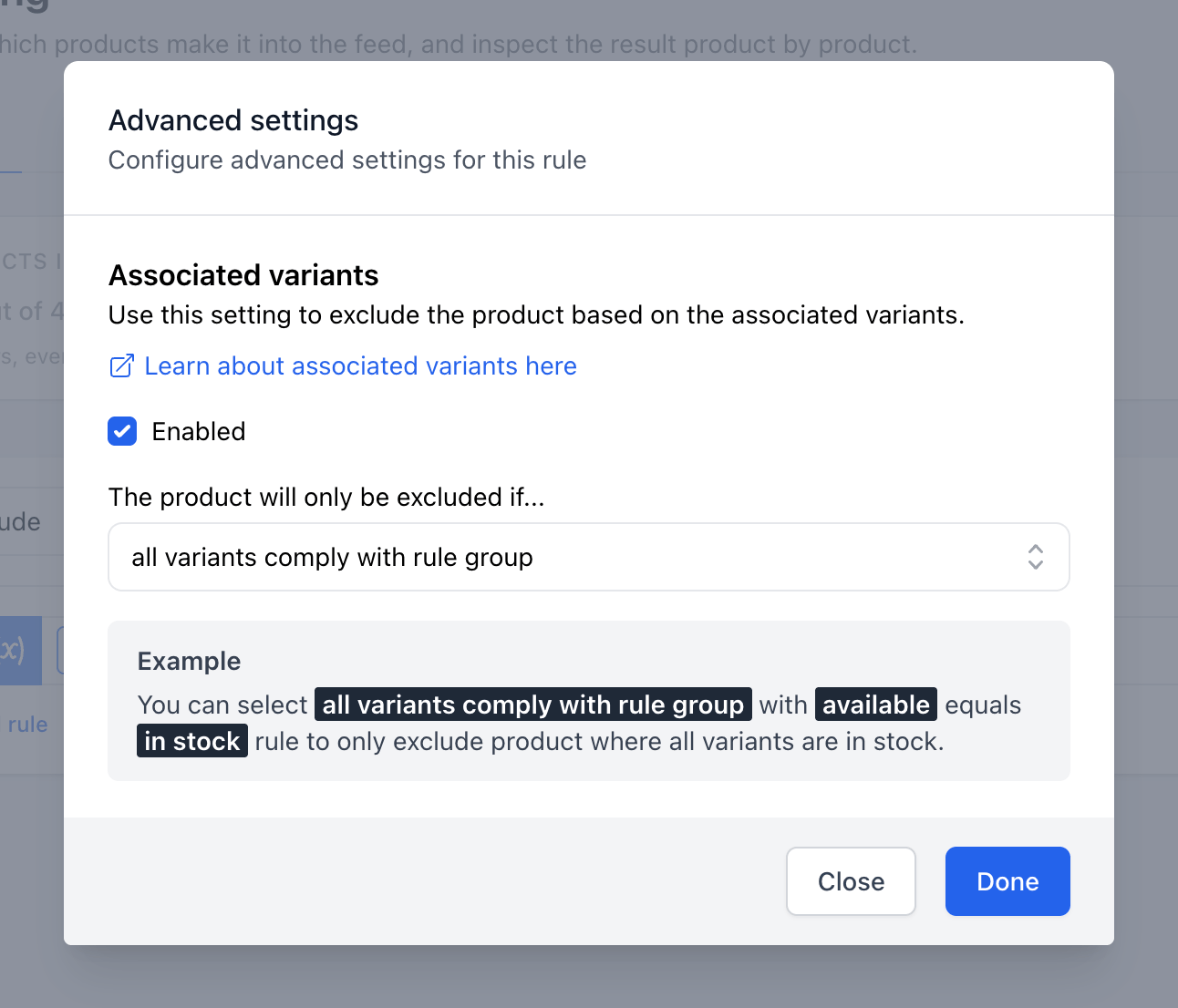
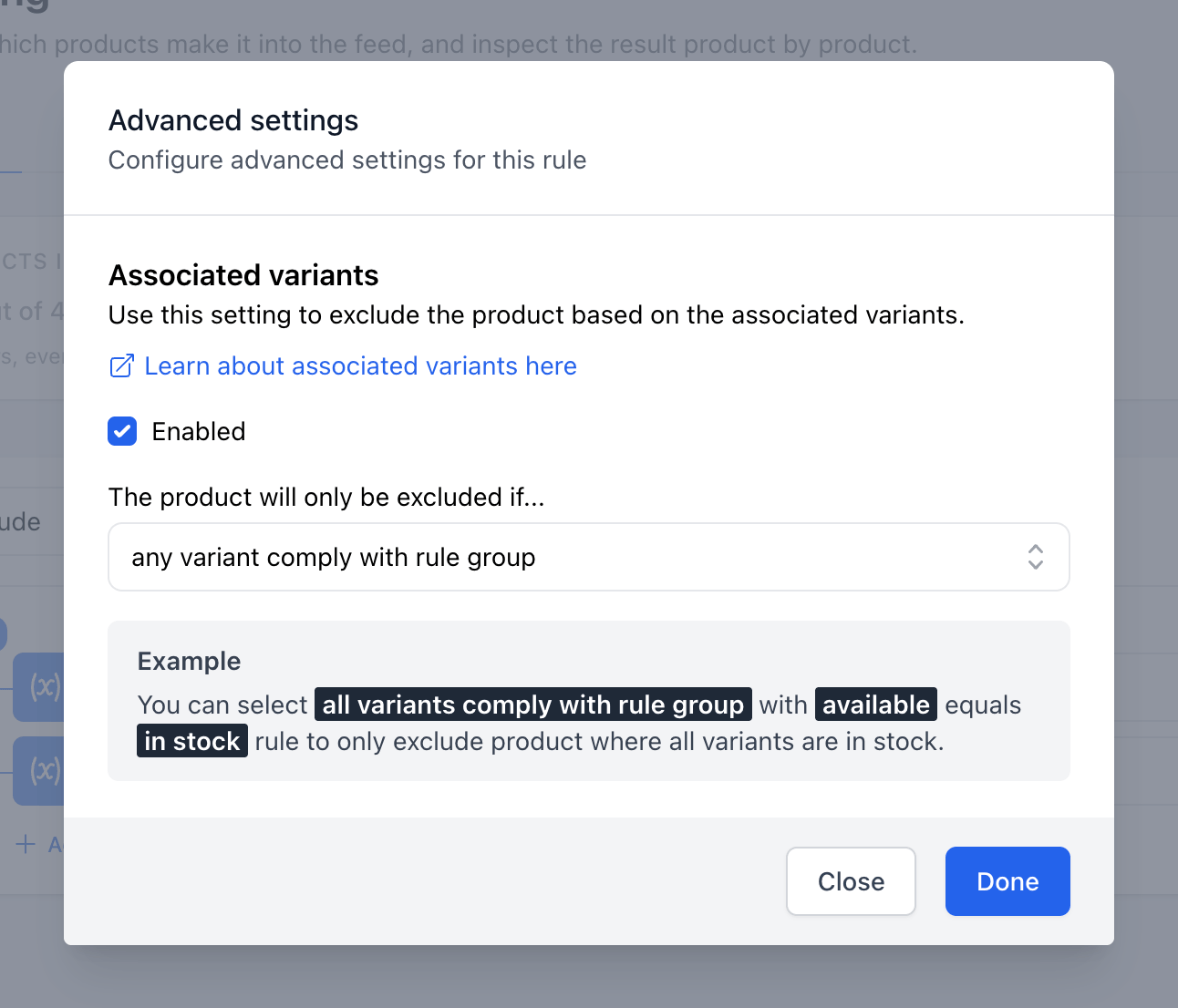
To use the associated product variants filter, you have to enable the feature on the desired rules among the inclusion and exclusion filters. You enable the filter by clicking the "Advanced"-button on the relevant rule group.

Clicking on the "Advanced" button will open a modal where you can enable the associated product variants filter by checking Enabled. You can then select the criteria and, if the criteria needs one, the threshold. Click Done to keep the setting.
Filter examples
Exclude all products if a percentage of the variants is out of stock
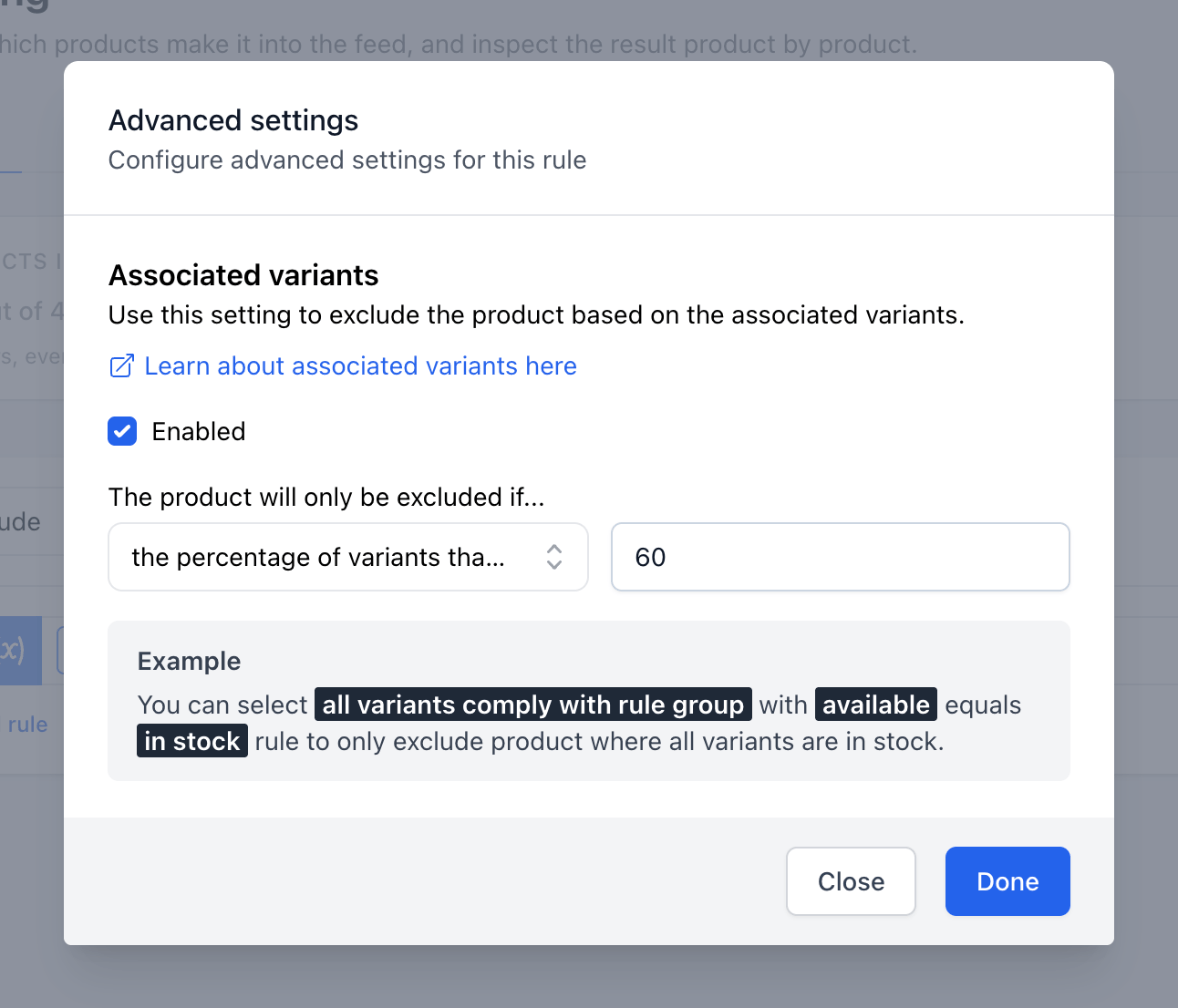
In this example, we want to exclude all products if a certain percentage of the variants are out of stock. We can set the criteria to "The percentage of variants that comply with rule group is above threshold" and set the threshold to 60%. That will exclude the product if more than 60% of the variants are out of stock.

INFO
Please note that products out of stock can still appear in the feed if the criteria is not met.
Say we have a product with three variants and one of them is out of stock. The product will still appear in the feed if the criteria is set to above 60% as the percentage of out of stock variants is only ~33%. This means that all three products will be included in the feed.
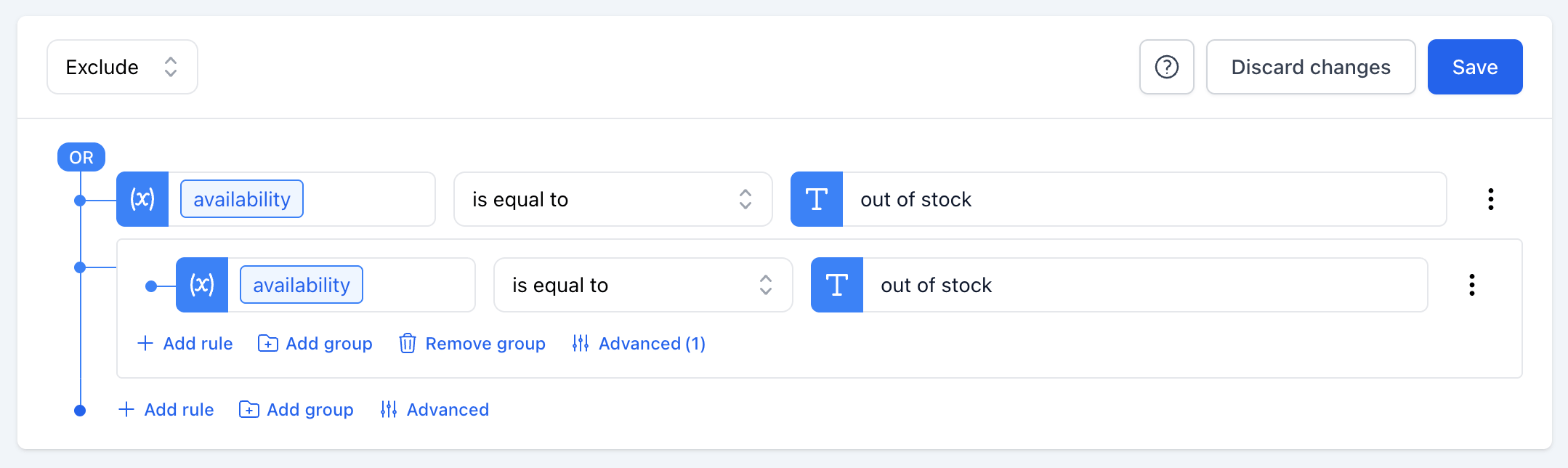
If you want to exclude any product that is out of stock, you can just create a new rule outside the rule group like this:
Exclude all products if the most sold size is out of stock
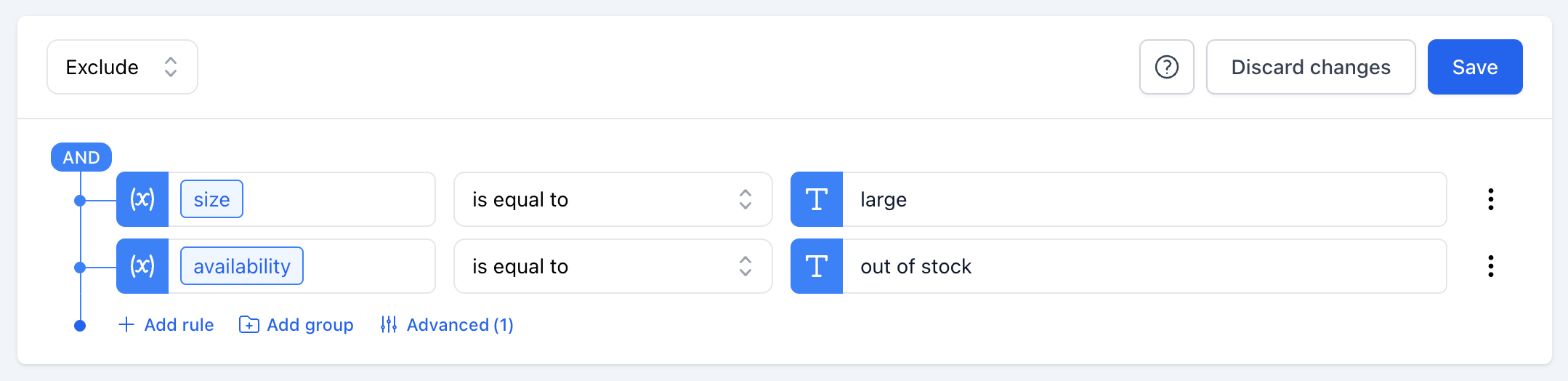
In this example, we want to exclude all products if the most sold size is out of stock. In this example the most sold size is "large".
Start by creating two rules in an AND-group:
- Rule 1: Size equals large
- Rule 2: Availability equals out of stock
Then enable Associated variants and select any variant comply with rule group.
Now all products will be excluded if the most sold size is out of stock.
Exclude all products if the most sold color is out of stock
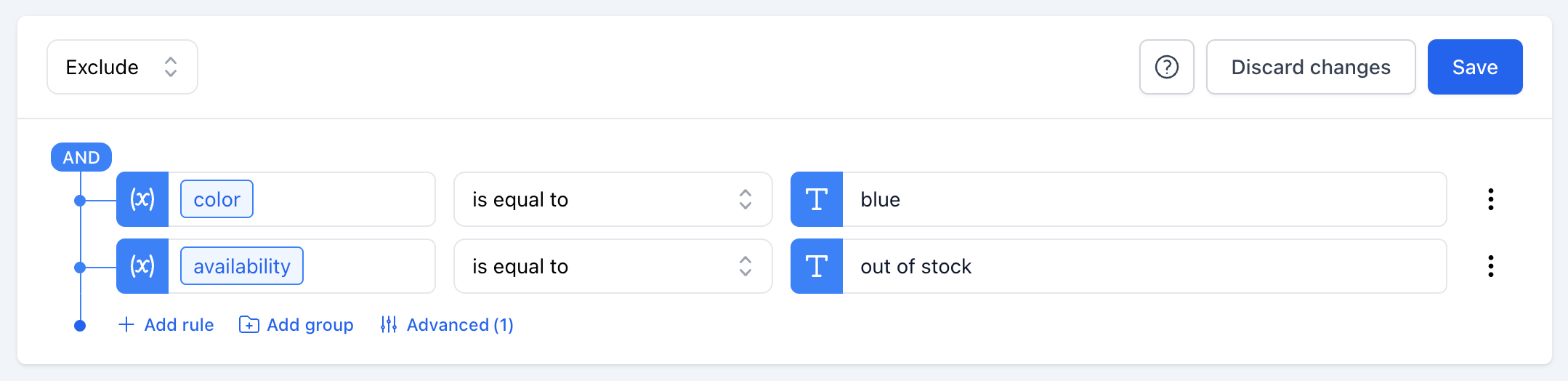
In this example, we want to exclude all products if the most sold color is out of stock. In this example the most sold color is "blue".
Start by creating two rules in an AND-group:
- Rule 1: Color equals blue
- Rule 2: Availability equals out of stock
Then enable Associated variants and select any variant comply with rule group.
Now all products will be excluded if the most sold color is out of stock.
Include products in stock

Include products where background removal is ready

Exclude products on sale
