
Appearance
How to create a Klaviyo Feed
This guide wil help you connect your products from Feedr to Klaviyo.
To create a new Klaviyo Product Feed in Feedr, click on New Feed in the corner. Afterwards you should copy the URL since we will need that later. To copy the URL simply click on it.
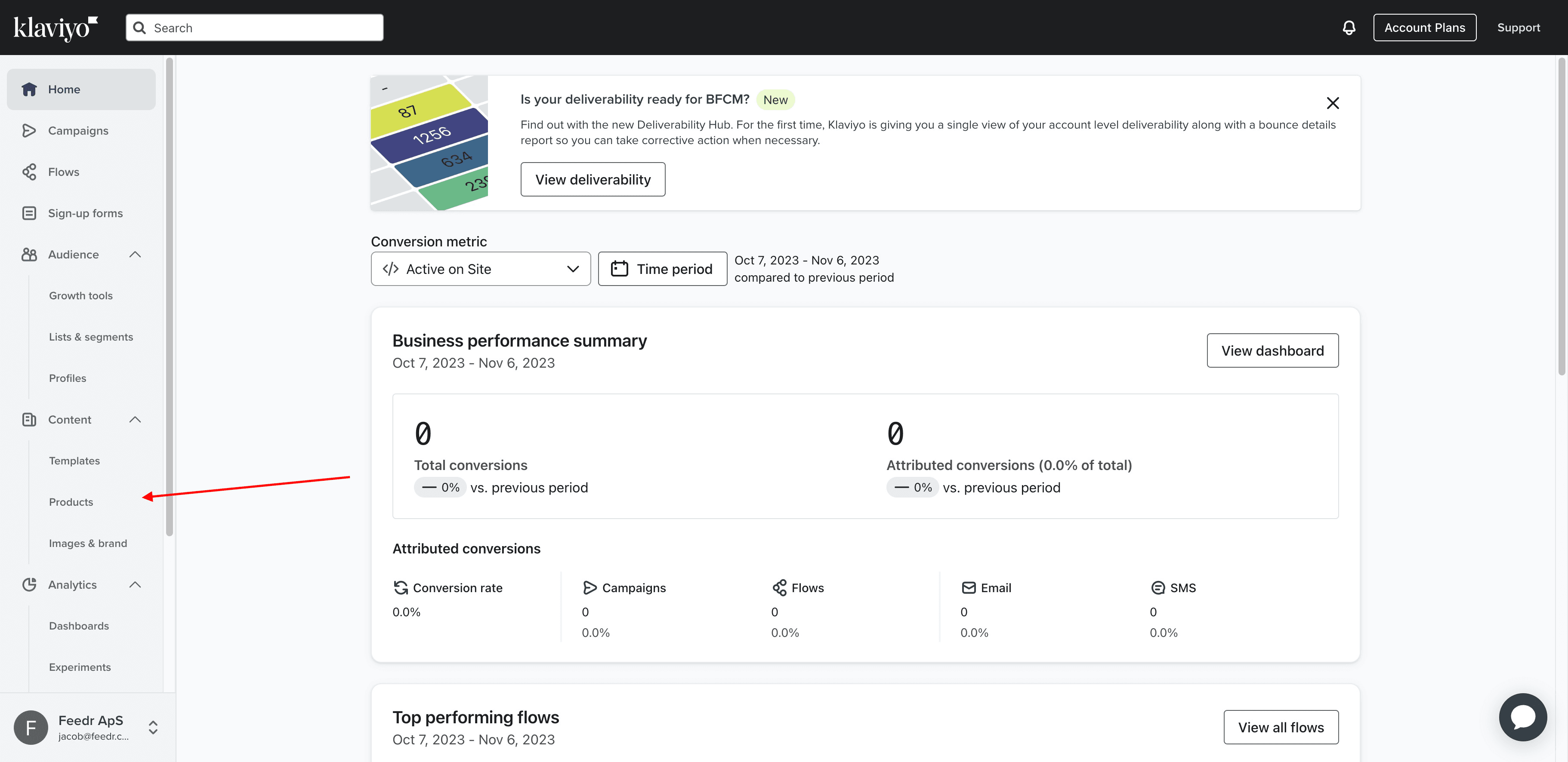
1. Go to products
Navigate to the 'Products' section within your Klaviyo dashboard.
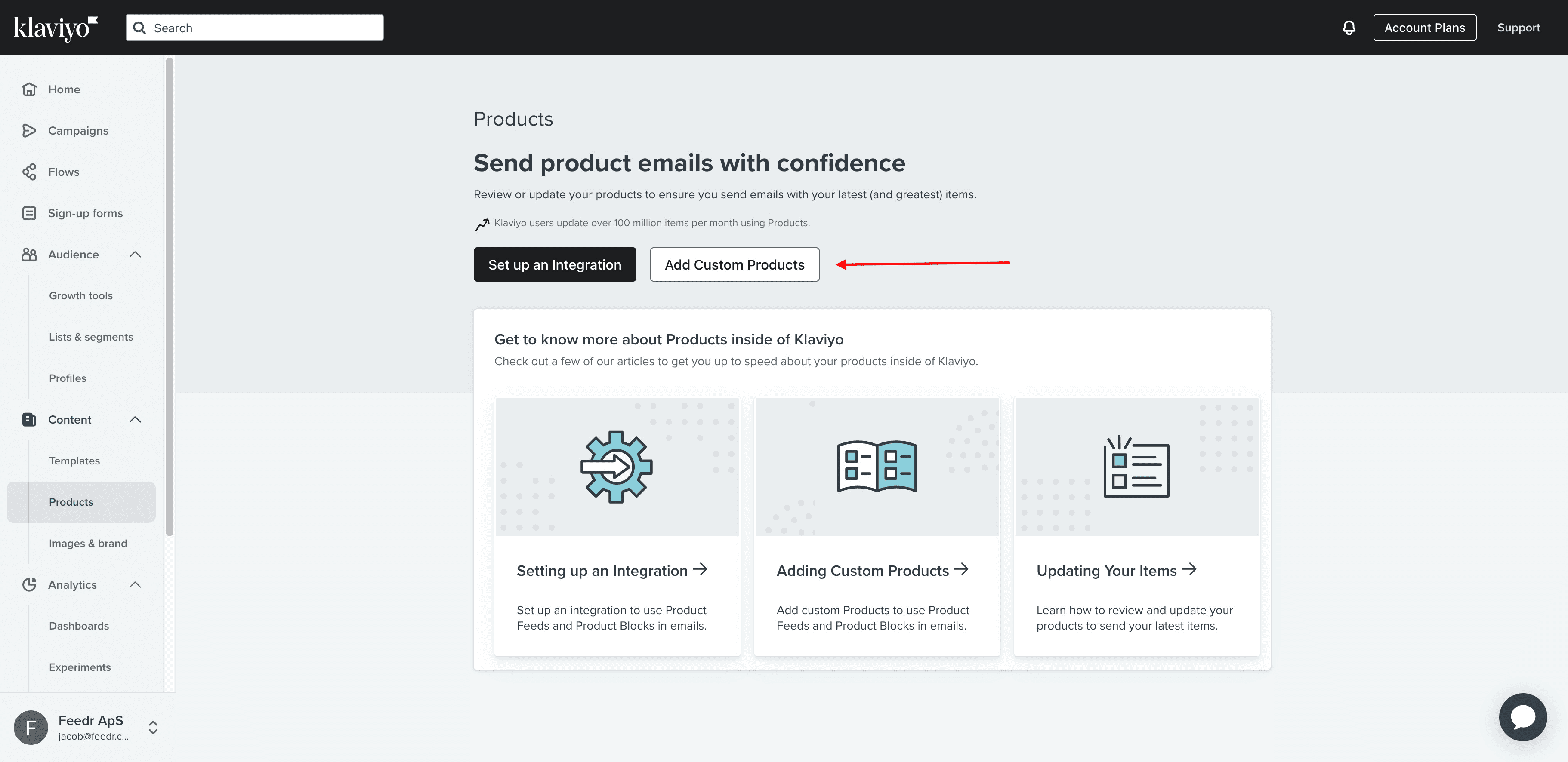
2. Add Custom Products
Select the option to add custom products to your product list in Klaviyo.
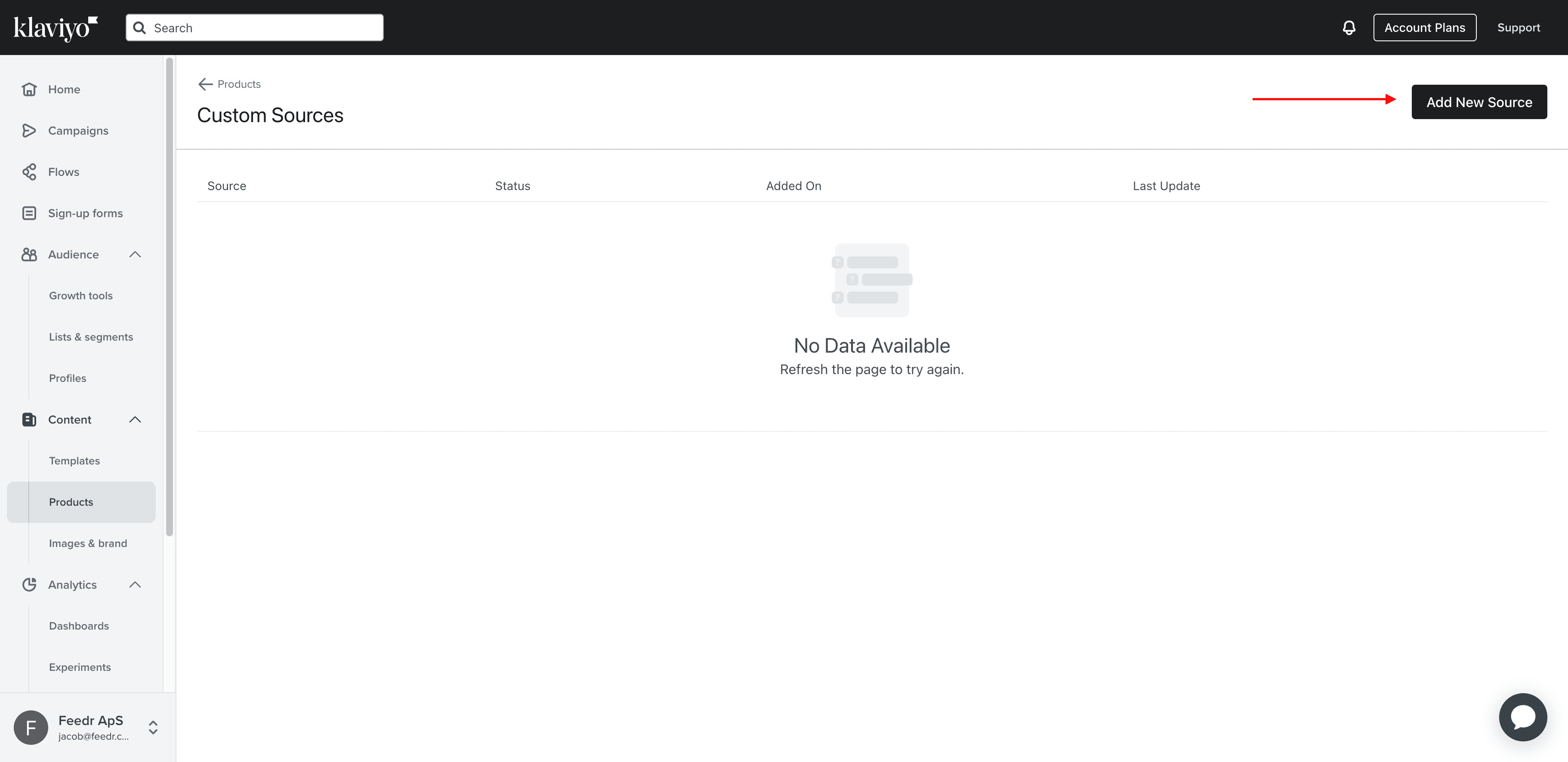
3. Add New Source
Choose to add a new source for your product feed.
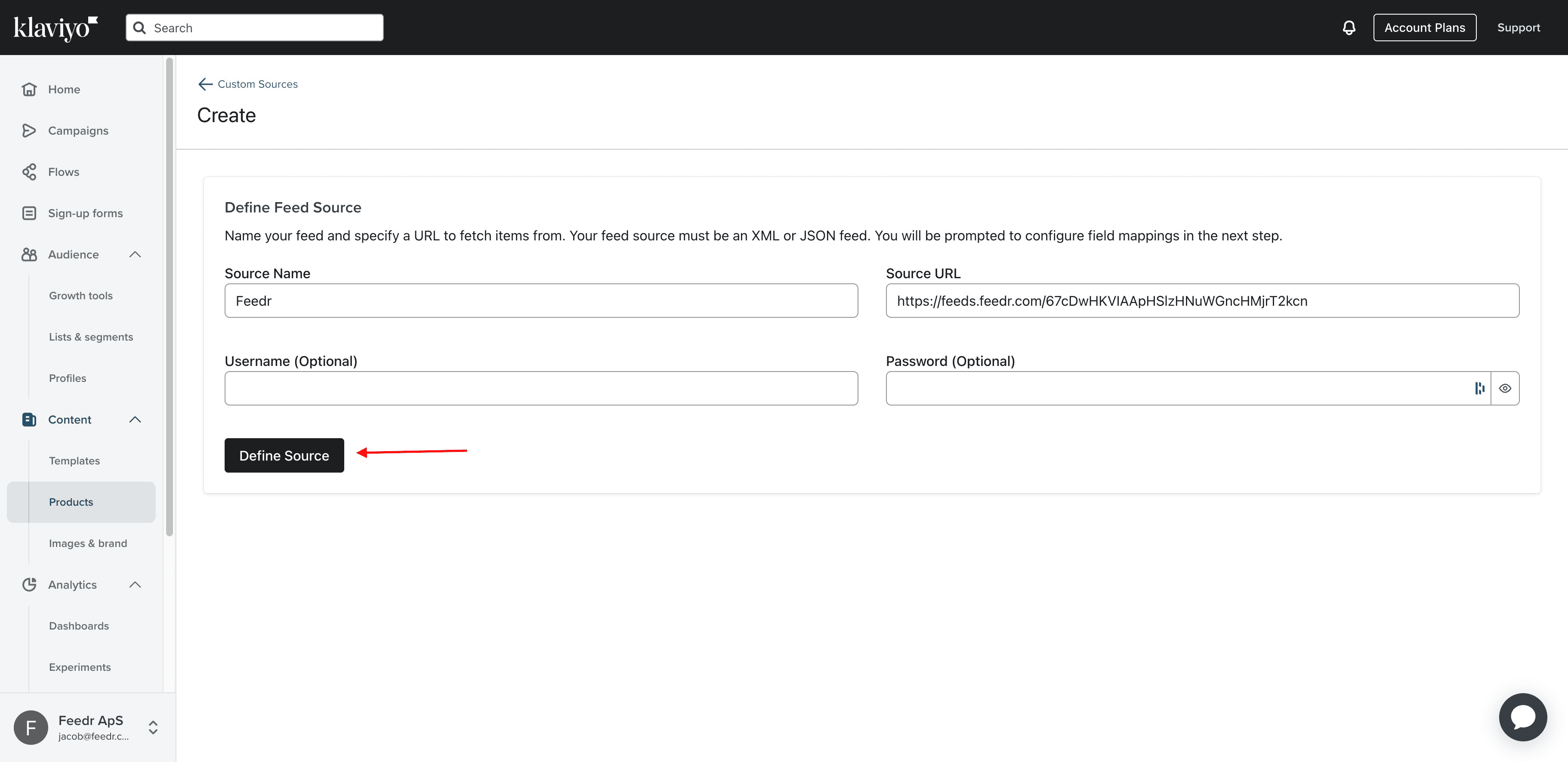
4. Add Source Name and URL
Input the name you wish to assign to your feed source and paste the feed URL copied from Feedr.
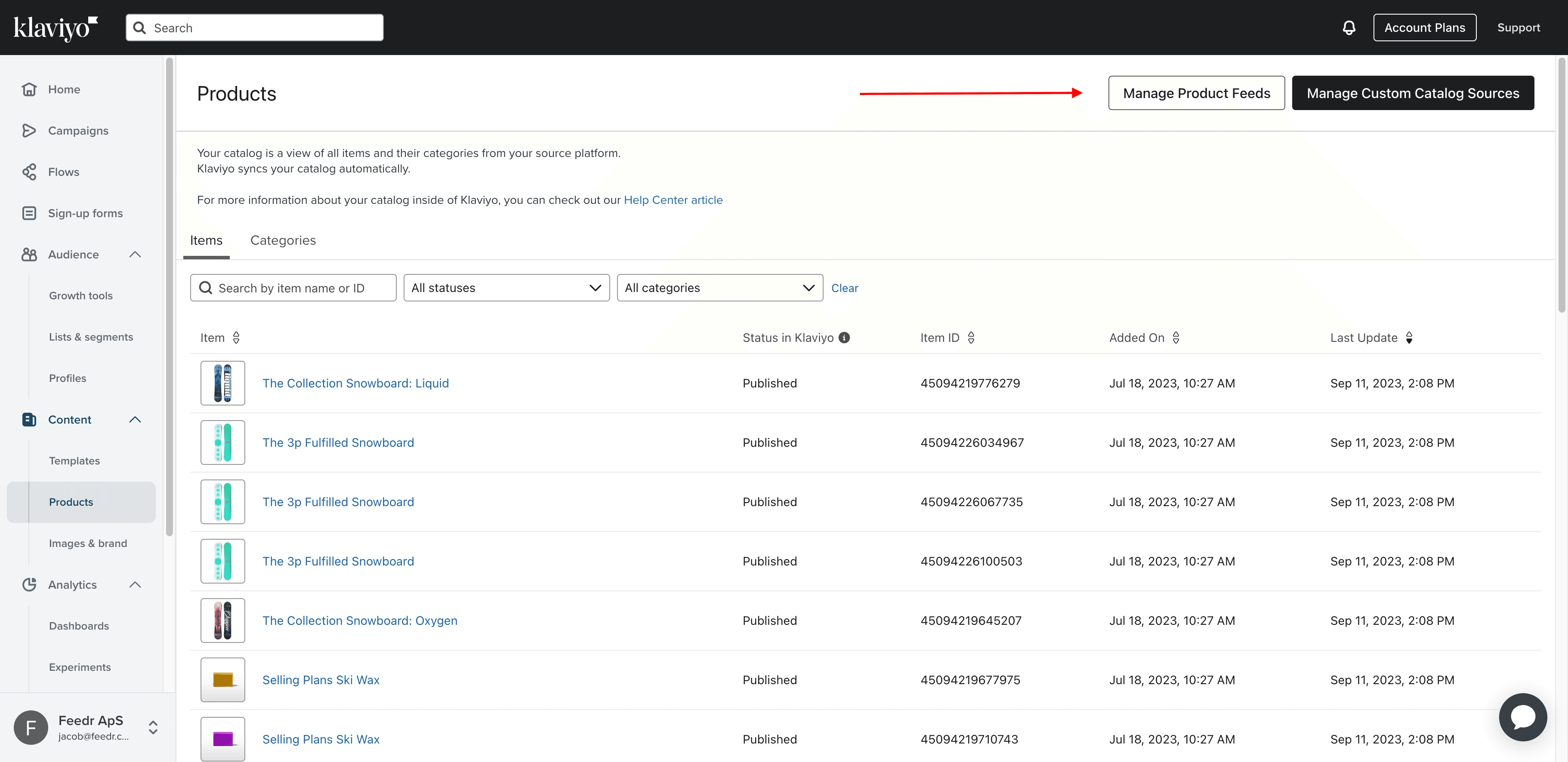
5. Click Manage Product Feeds
Go to the 'Manage Product Feeds' section to handle all of your product feeds.
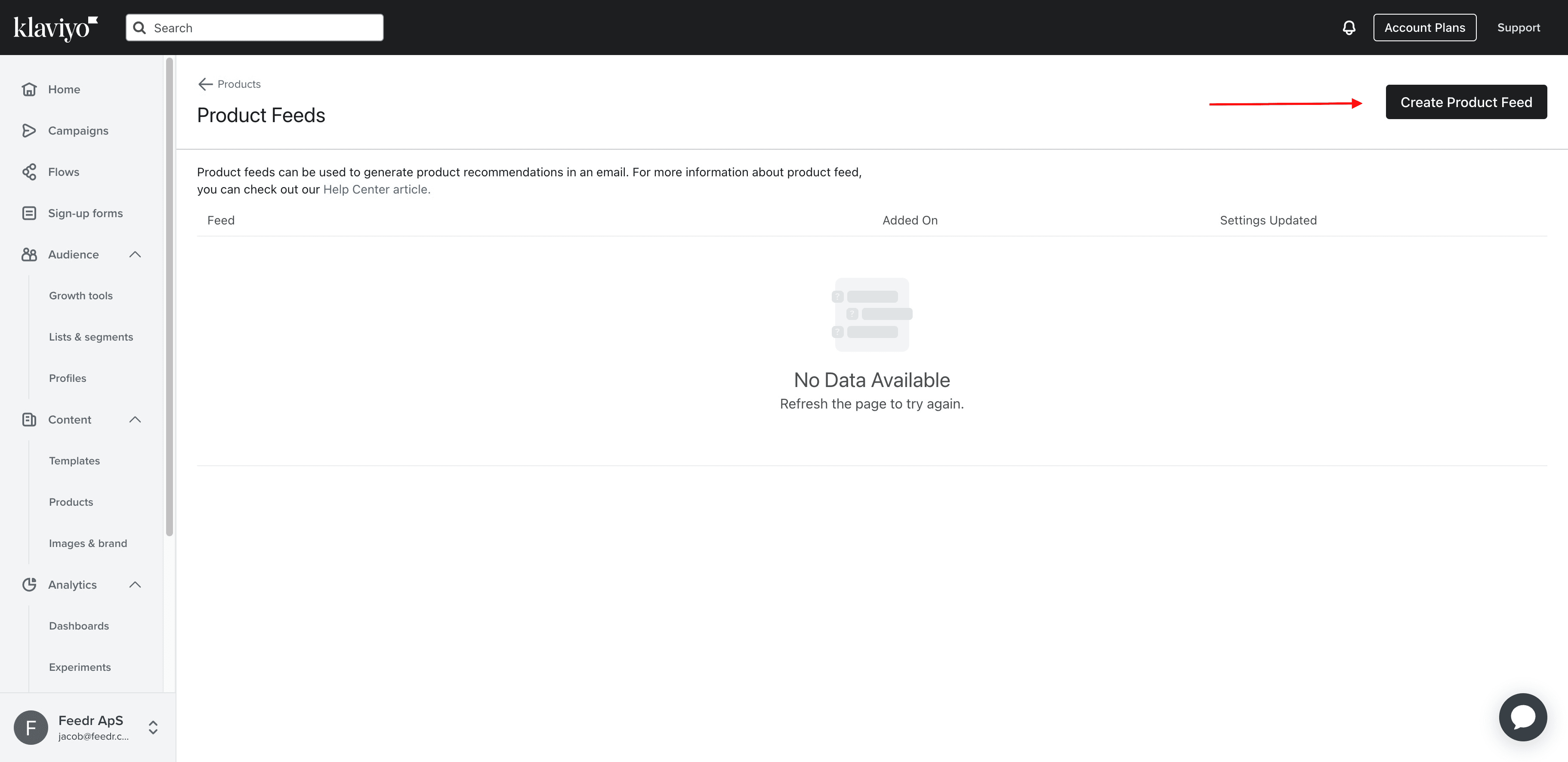
6. Create Product Feed
Create a new product feed within Klaviyo, where you will utilize the URL from Feedr.
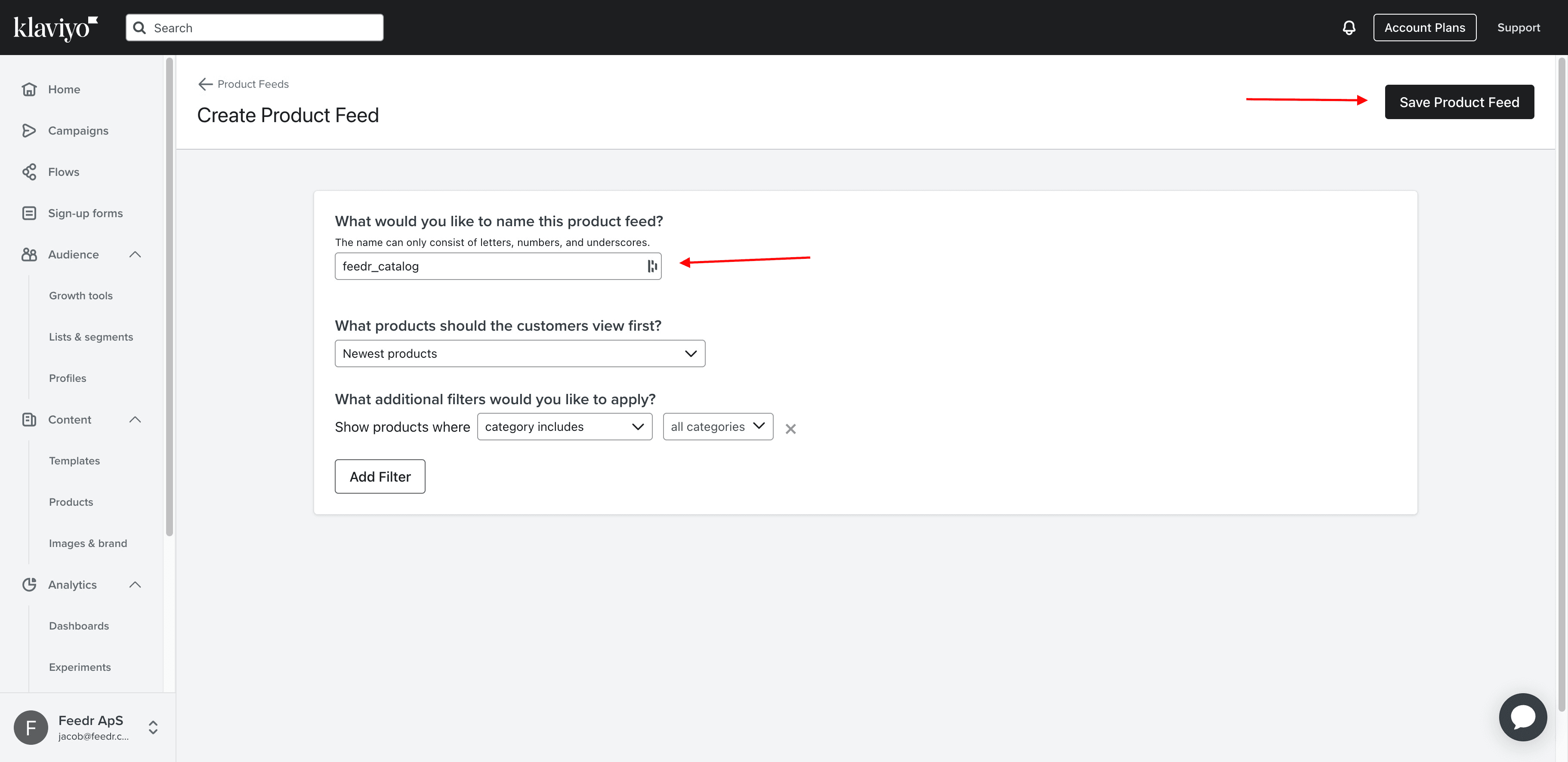
7. Enter a name
Assign a distinct name to your product feed for easy identification and management.
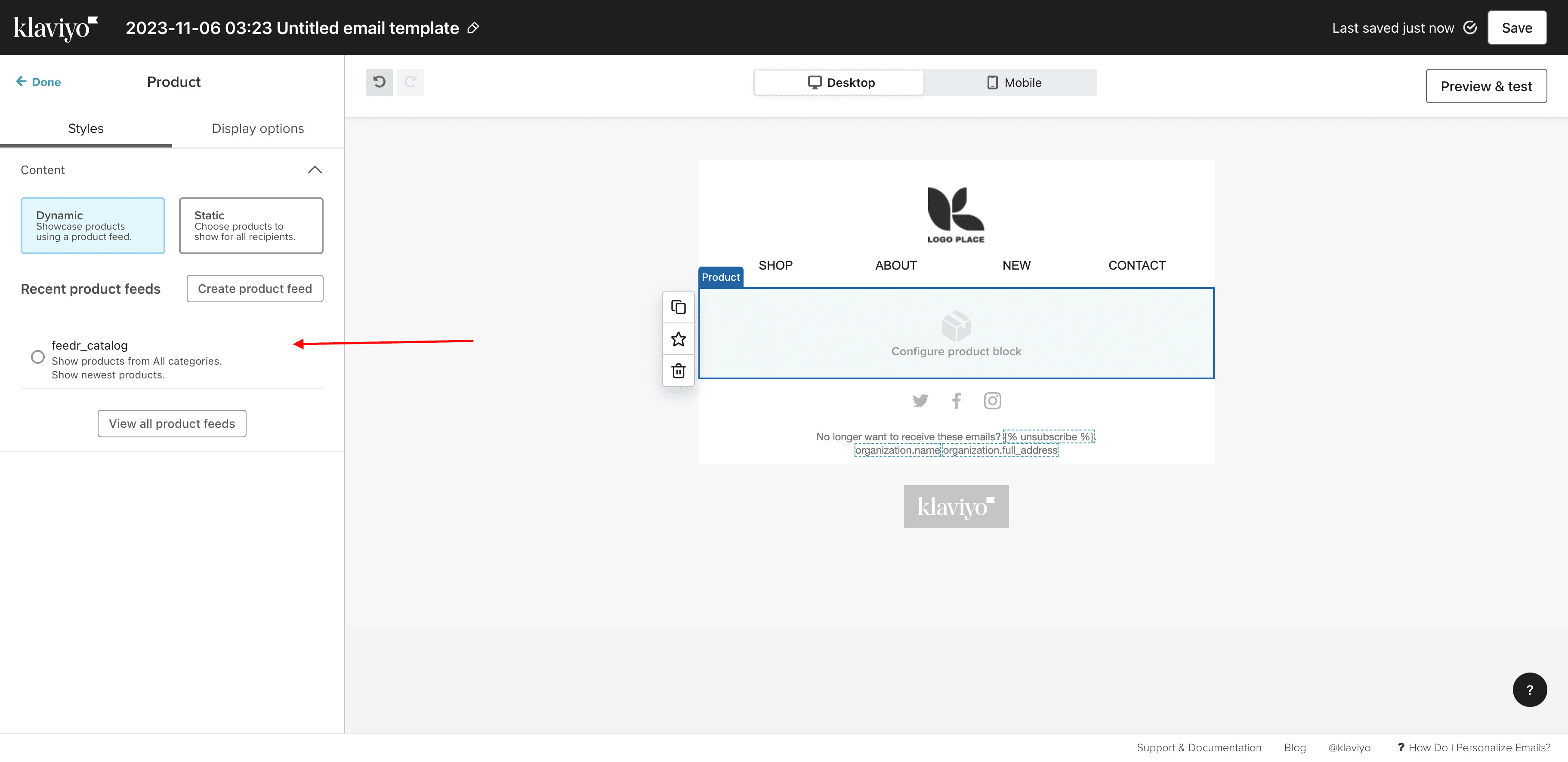
Usage in email templates
Incorporate your new product feed into Klaviyo email templates for dynamic and personalized marketing campaigns.
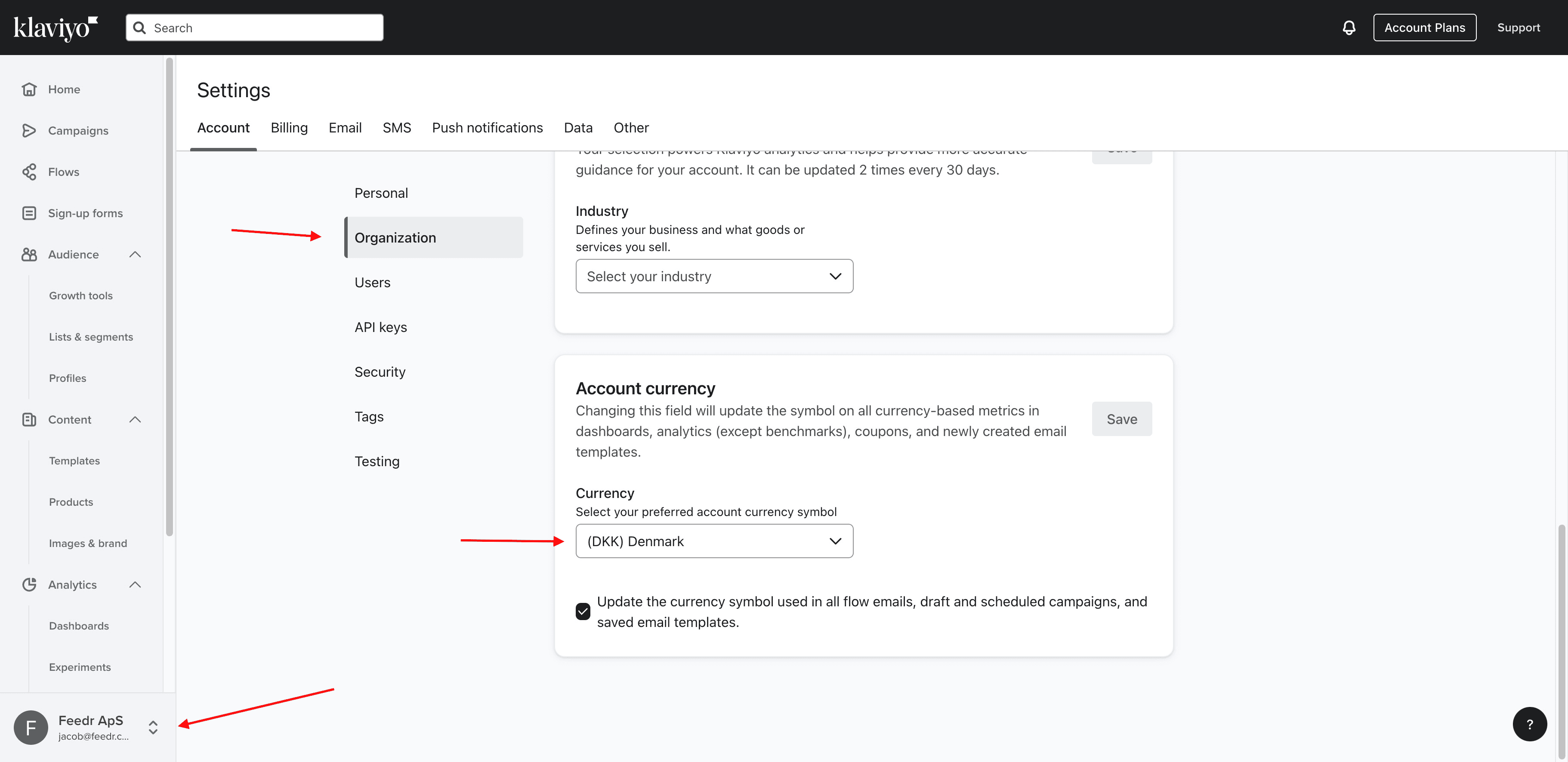
Changing currency
The currency cannot be provided through the product feed. It will use what you have set in your Klaviyo account. To change the currency, go to your account settings and change the currency there.
With your Klaviyo feed now set up and integrated, you're ready to harness the power of personalized email marketing to grow your business.