Appearance
How to design the background in templates
The main purpose of templates is the manage the visual branding of your catalog ads and products distributed across multiple sales channels at once. Instead of just showing the original plain product image, you can design appearling images - and that includes the background.
When you create a new template, the background on the canvas is white. You can change that! Just click on the background layer and modify it however you like.
Background image
Use a fixed image as your backdrop - a branded scene, a lifestyle photo, or a seasonal background - and place your product on top. It's a great way to give every product the same on-brand setting, even when the original photos were shot on plain white. This works best when the product has been cut out from its original photo, so it sits cleanly on the new background - see Background Removal.
Background gradient
A gradient adds depth without competing with the product. Choose a linear gradient (color fades in a straight line) or a radial one (color radiates out from a point), and add as many color stops as you like. Two brand colors give an on-brand look, while a subtle light-to-dark fade makes the product pop.
Background color
Although it isn't ideal in most cases, you can also use a single solid background color. It's the simplest option - pick a color from the color picker, and use your exact brand hex for consistency. A plain color works well when the product is the hero and you want nothing else competing for attention.
Background auto detection
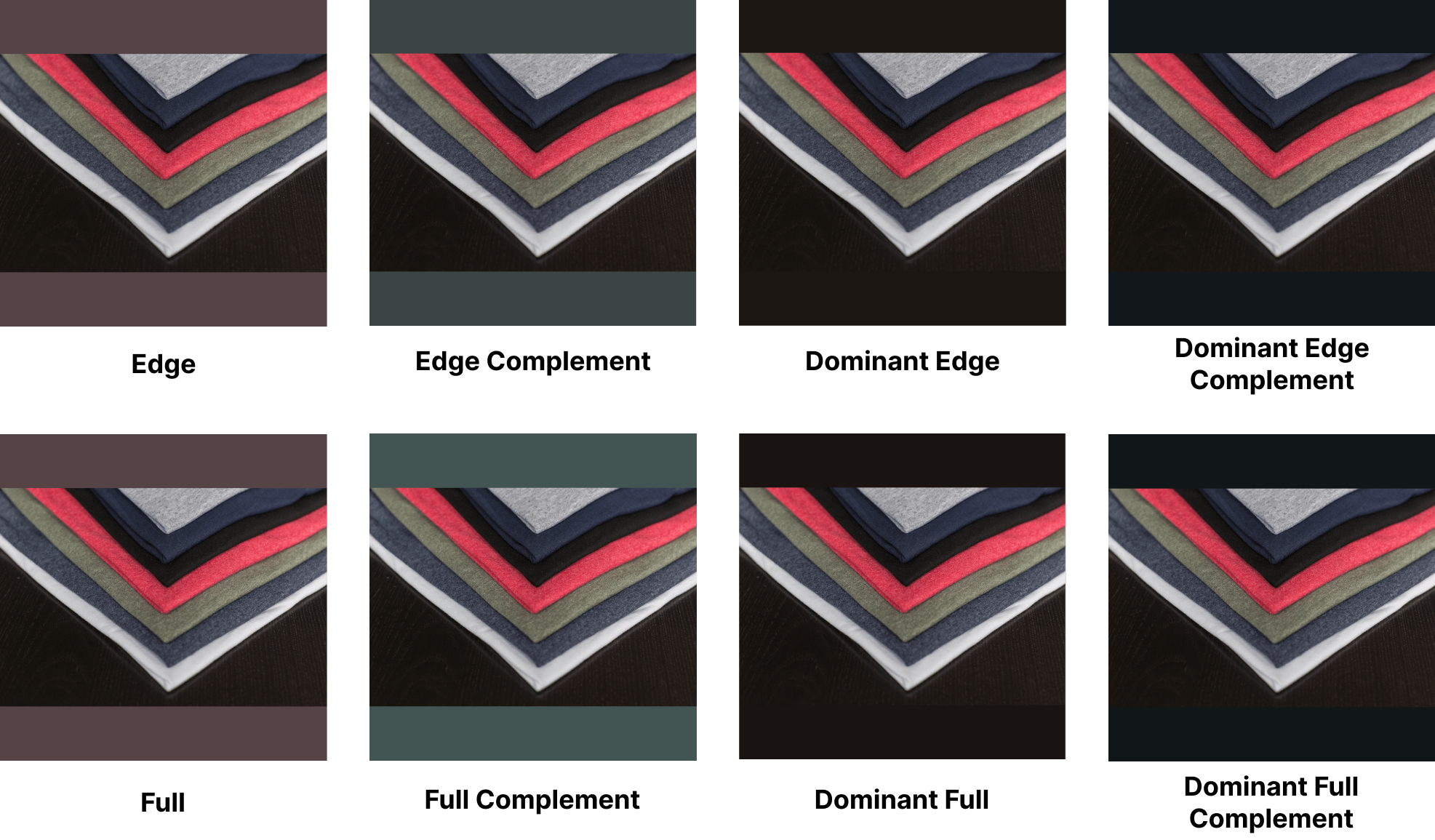
Let Feedr pick the background color automatically from each product image, so the background always matches the product - even across thousands of items at once. Choose a strategy to fit your catalog: Edge / Dominant edge sample the colors around the image border (the best choice in most cases), while Full / Dominant full sample the whole image. Enable the complement option for a contrasting background instead of a matching one.
When using automatic background detection, you need to select a background strategy. The background color is computed based on the selected strategy and below is an illustration of the different options and how they differ.