
Appearance
How to create a Snapchat Feed
This guide wil help you connect your products from Feedr to Snapchat.
To create a new Snapchat Product Feed in Feedr, click on New Feed in the corner. Afterwards you should copy the URL since we will need that later. To copy the URL simply click on it.
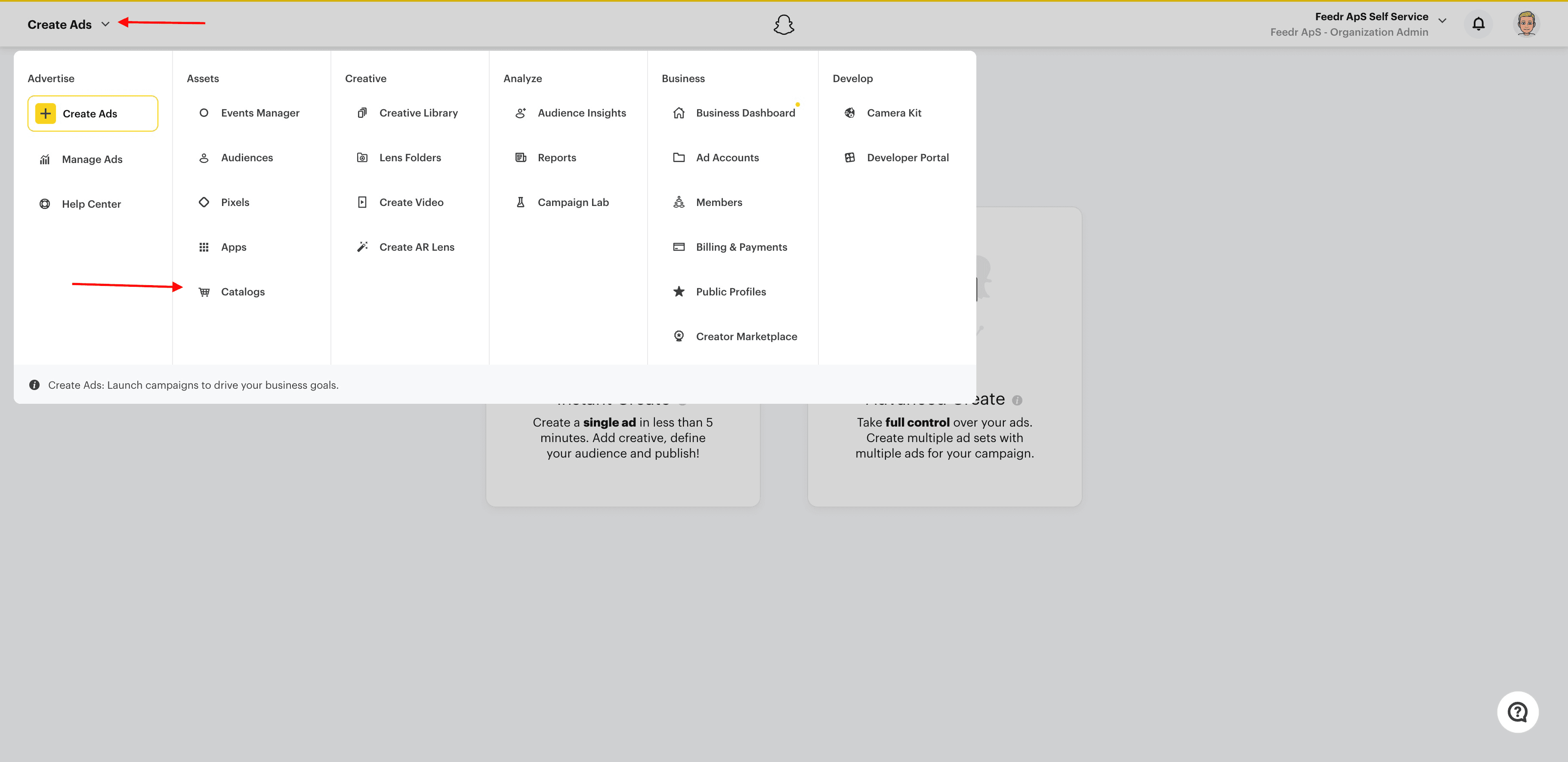
1. Go to Catalogs
Within your Snapchat Business Manager, navigate to the 'Catalogs' section.
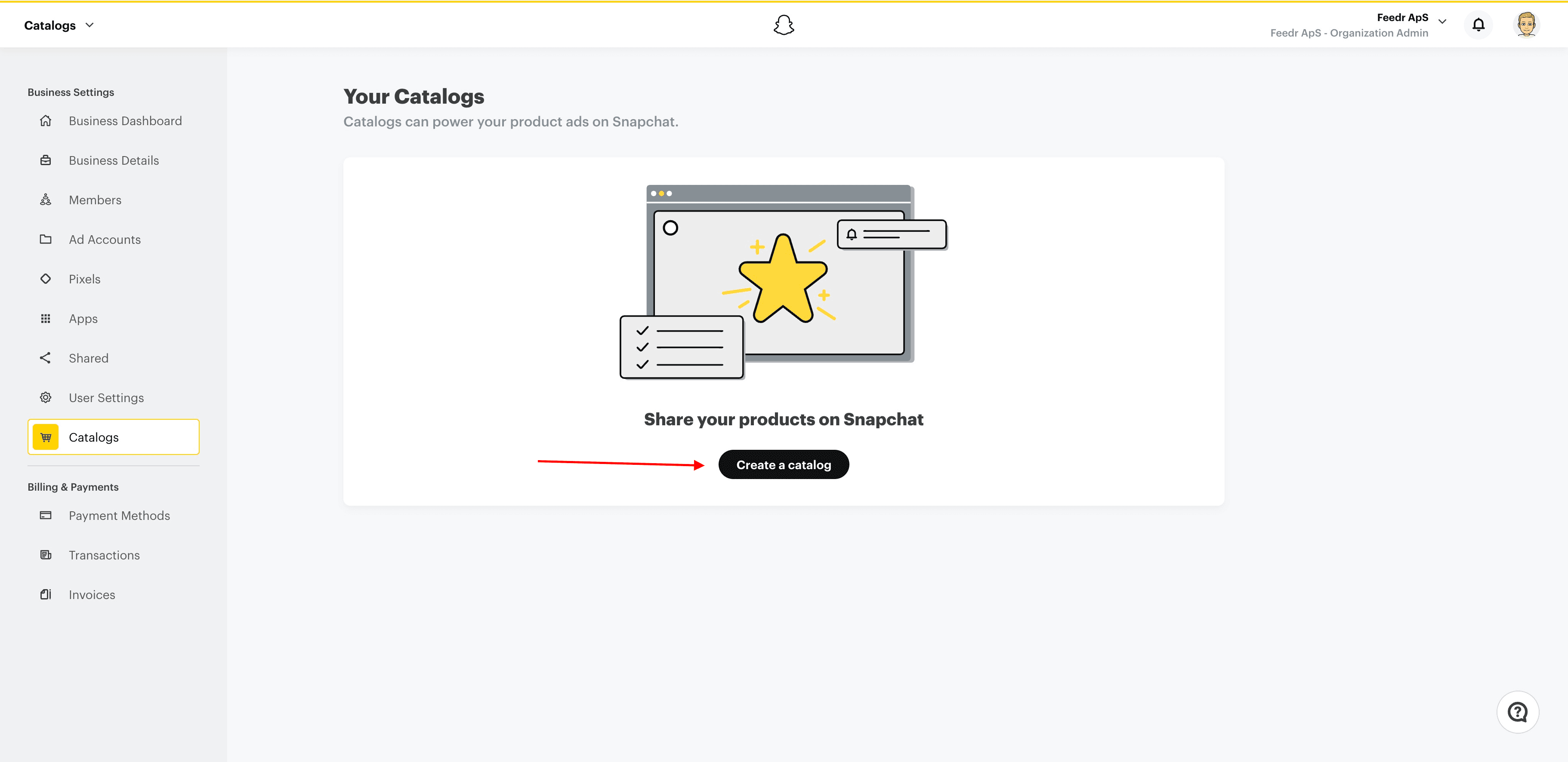
2. Click Create Catalog
Click on the 'Create Catalog' button to start the catalog creation process.
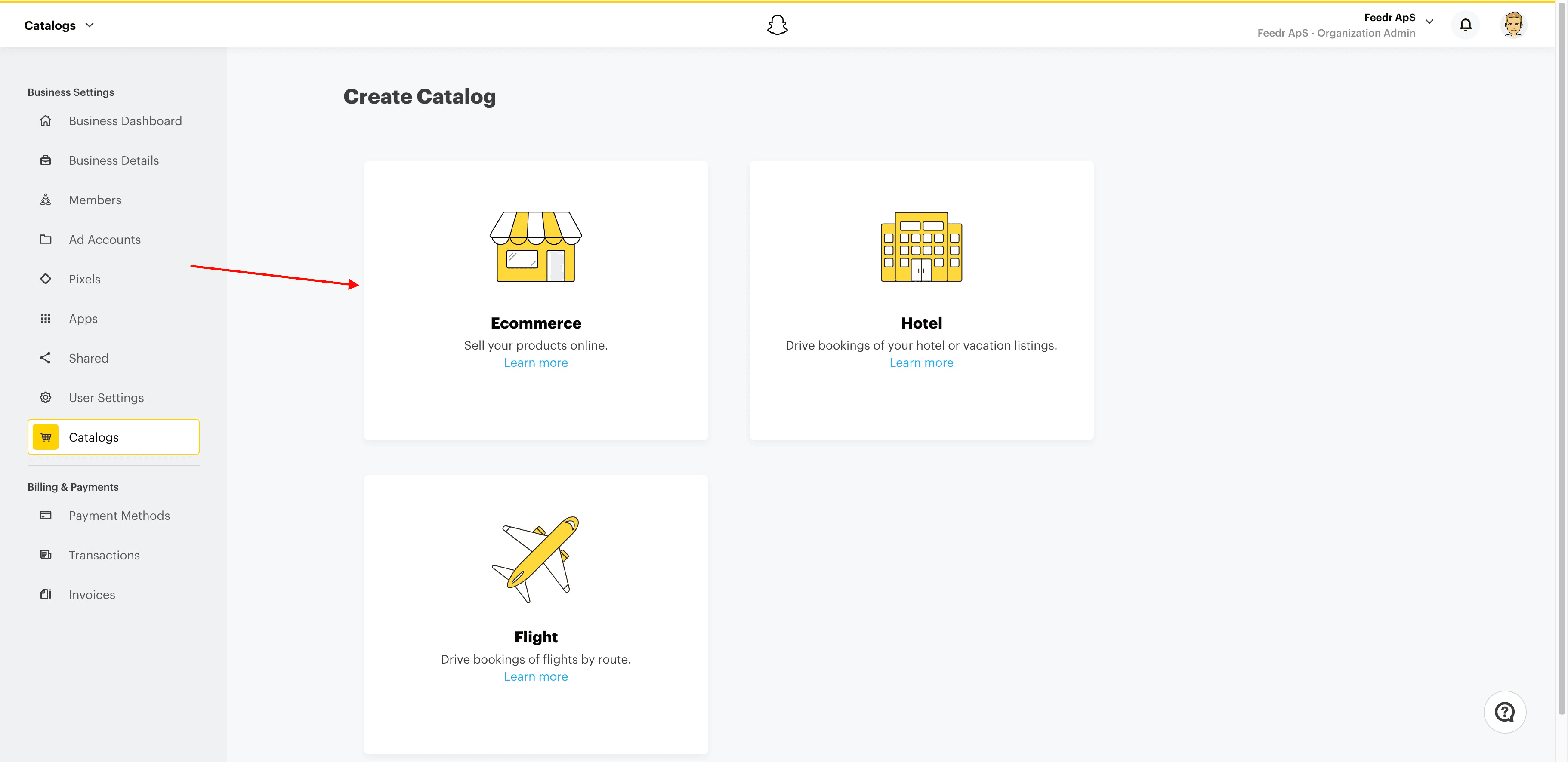
3. Select Ecommerce
When prompted for the catalog type, choose 'Ecommerce' to align with your online store.
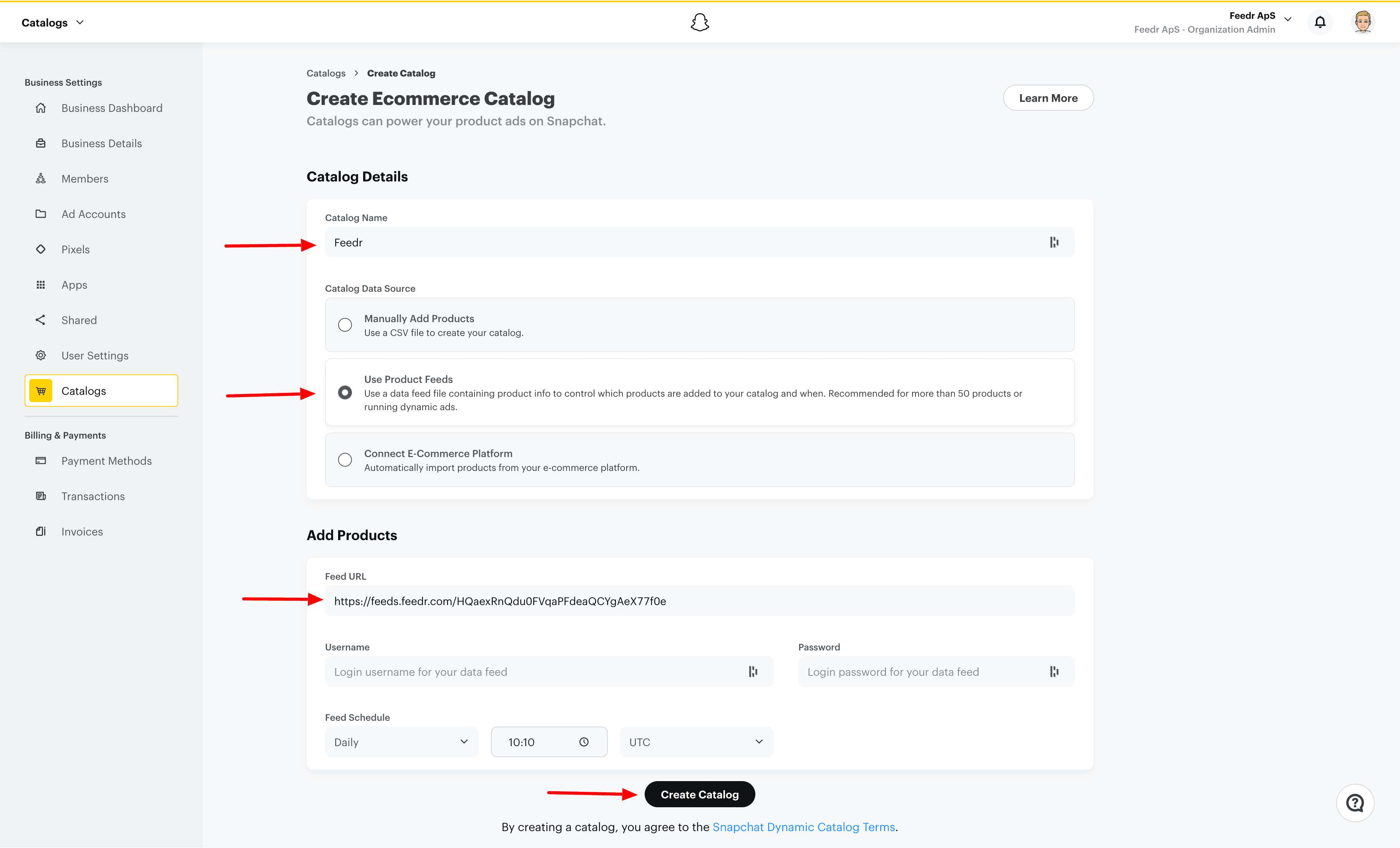
4. Add Catalog Information
Enter the necessary information for your new catalog, such as the name, website, and use the feed URL from Feedr.
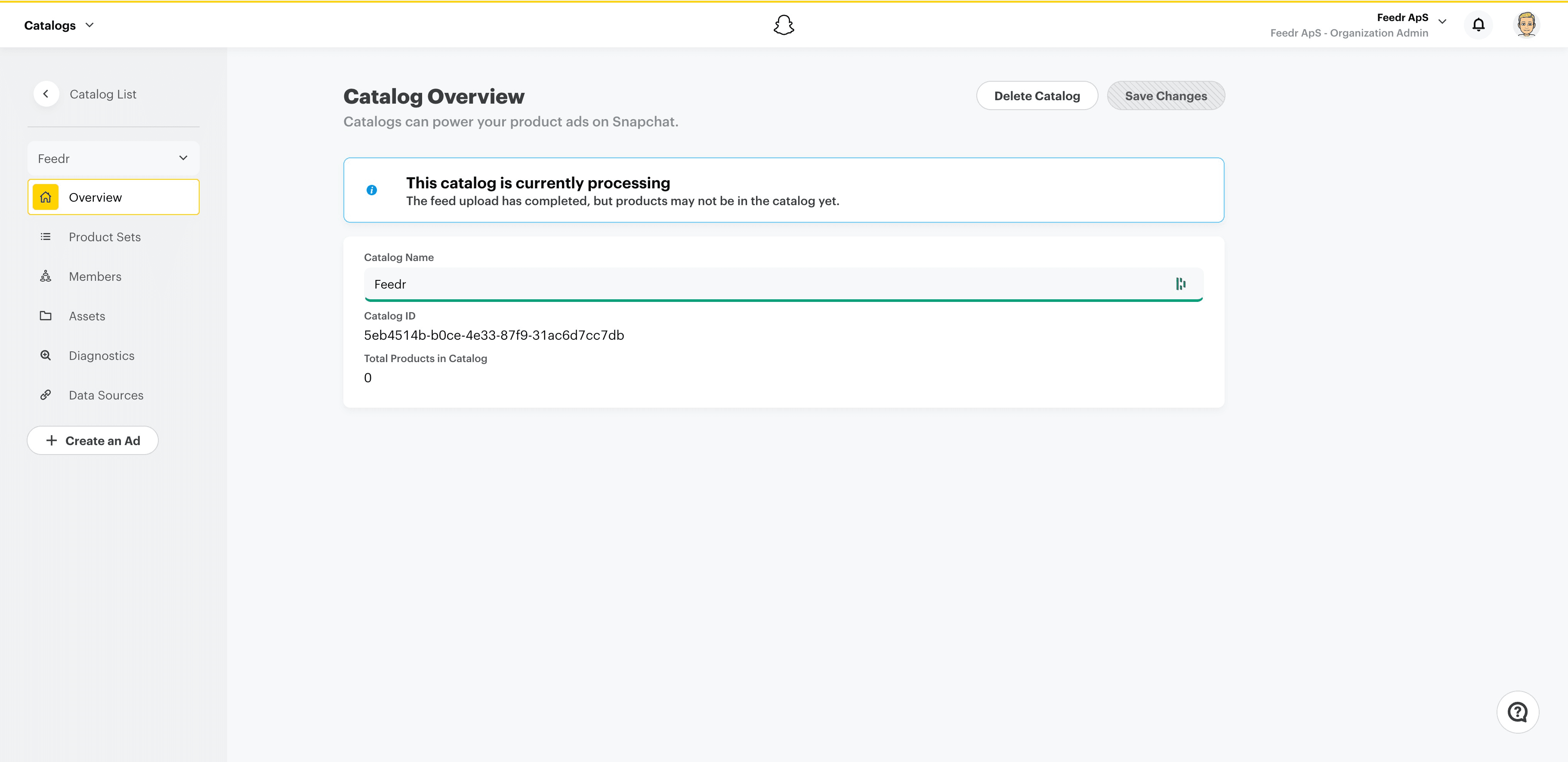
5. Catalog Overview
Once the catalog is created, you'll be directed to the catalog overview page where you can manage and view your products.
With the Feedr feed configured and integrated into Snapchat's catalog system, you're all set to take advantage of Snapchat's vast user base to advertise and sell your products.