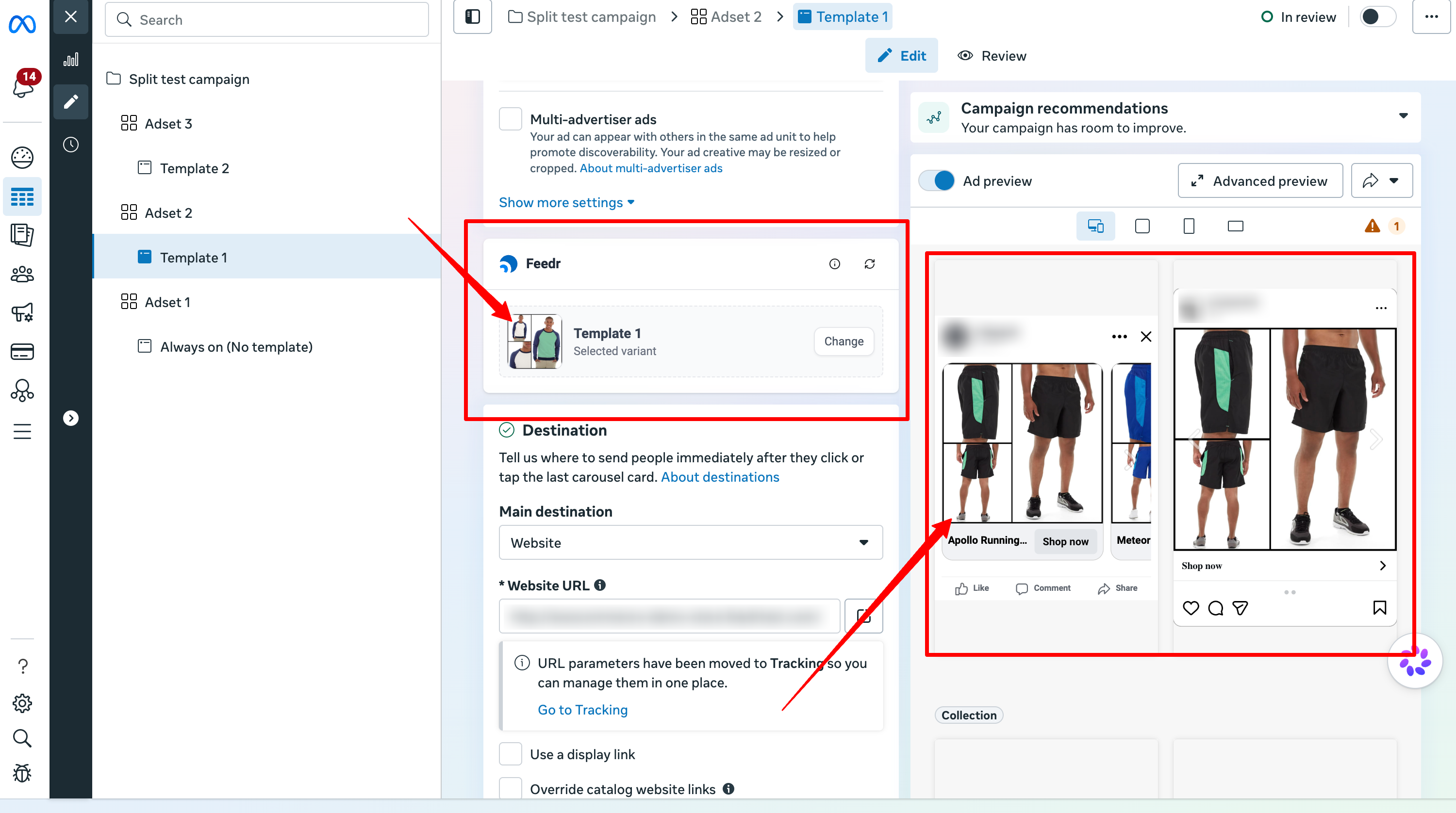
Appearance
How to use the Chrome Extension
To help you switch between your variants directly in Meta Ads Manager when you're creating your ads, we've developed a Chrome Extension. This extension will help you to save time and make your workflow more efficient.
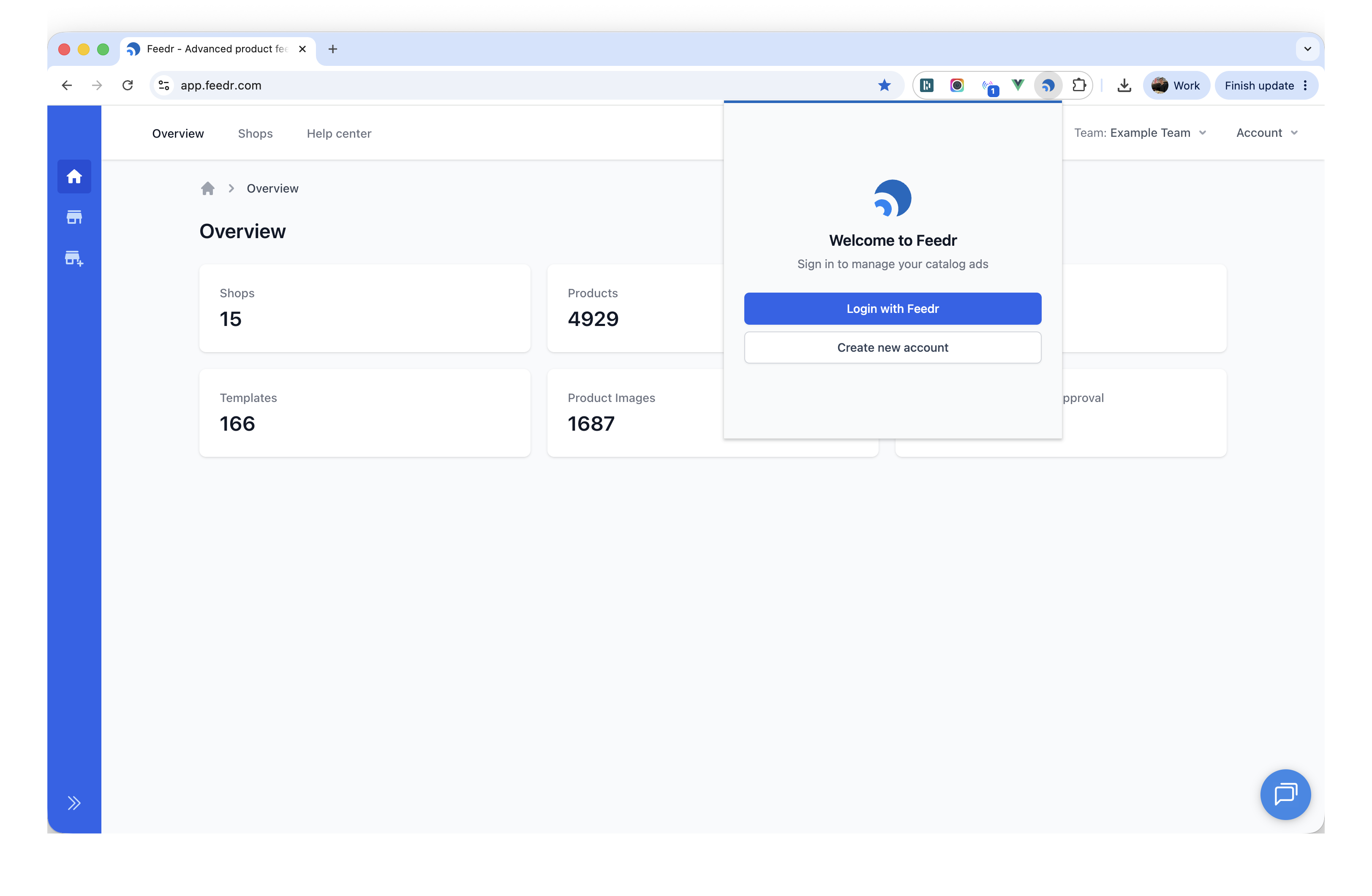
You just have to install the Feedr Chrome Extension and log into your Feedr Account within the Chrome Extension.
You can install the extension here: Feedr Chrome Extension
Once you have installed the extension, you can log into your Feedr Account.
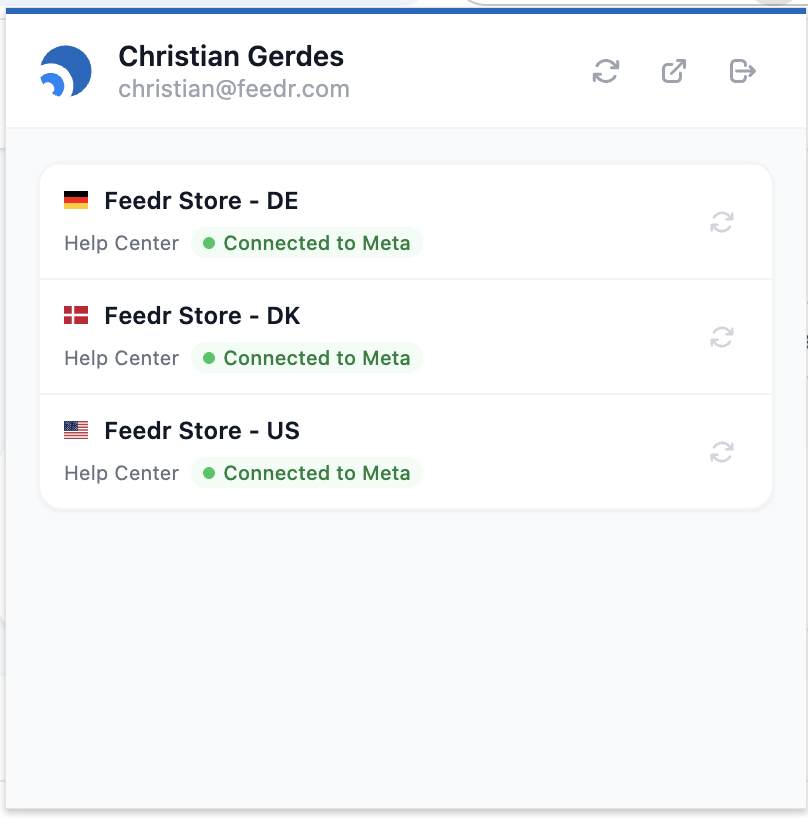
Once logged in you can see all the shops you have access to and if they are connected to Meta.
Switching variants in Meta Ads Manager
To switch the variant in Meta Ads Manager, make sure the ad you're using is using the same product catalog as the feed you are using.
Then under the Ad setup card, you will see a new entry called Feedr. Here you have a dropdown where you can select the variant you want to use.
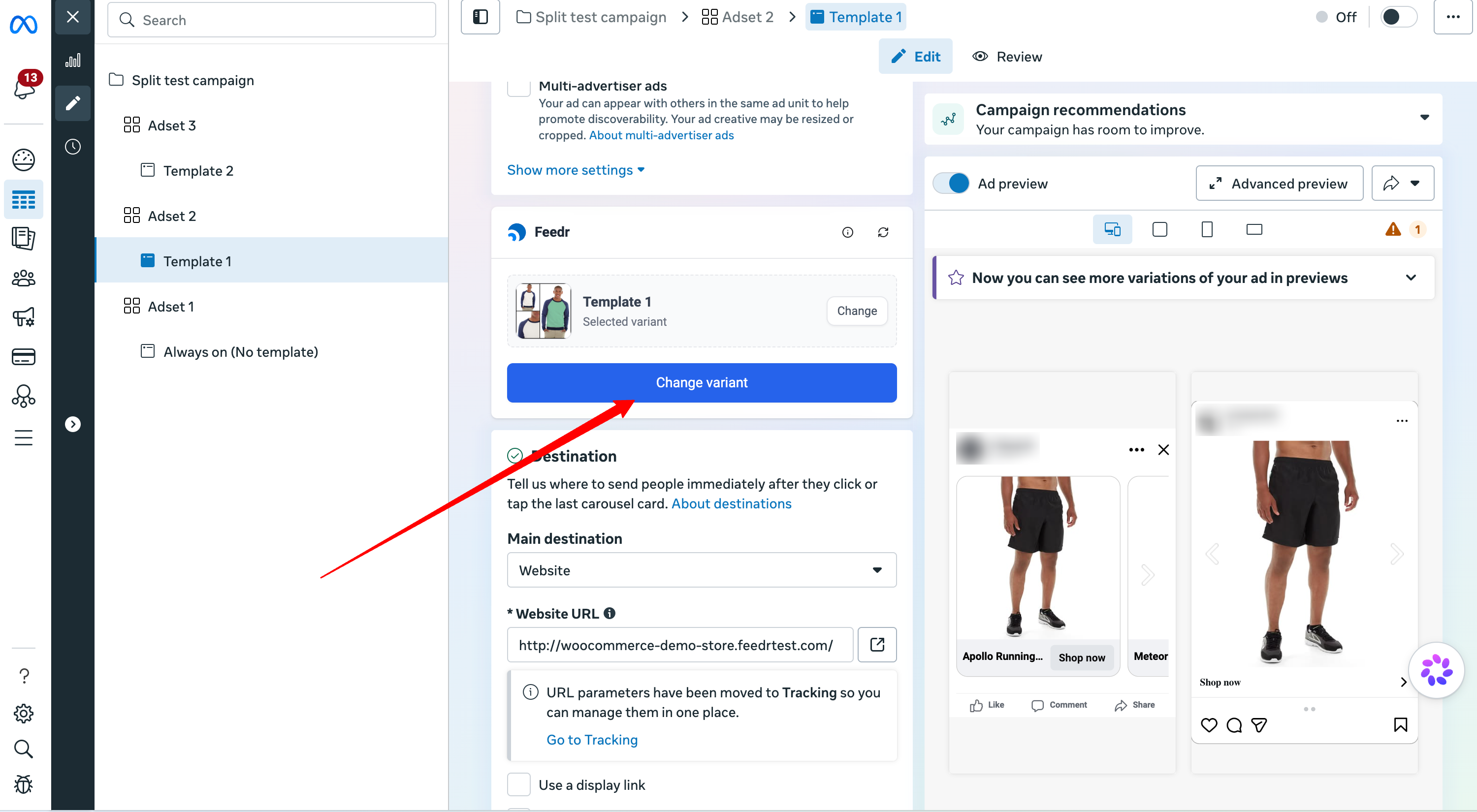
When you have selected the new variant, it will automatically be applied to the ad. Afterwards the page will refresh and you will see the new variant in the Preview section.