
How to fix rejected images
Most bad cutouts can be fixed in a few clicks. The Fix images screen shows each image next to ready-made alternatives, so you pick the one that looks right and save them all at once.
Open the Fix screen
On Review images, select the images you want to fix and click Fix in the bar. It's on every tab except Queued and Replaced. You can also click Fix when you inspect an image.
Images that aren't rejected yet are rejected first, so your feeds use the original photo while you work on them. Photos that were already transparent are skipped, because there is no background to fix.
Pick a version for each image
Each image gets a row with up to four versions. Click the one you want to keep.
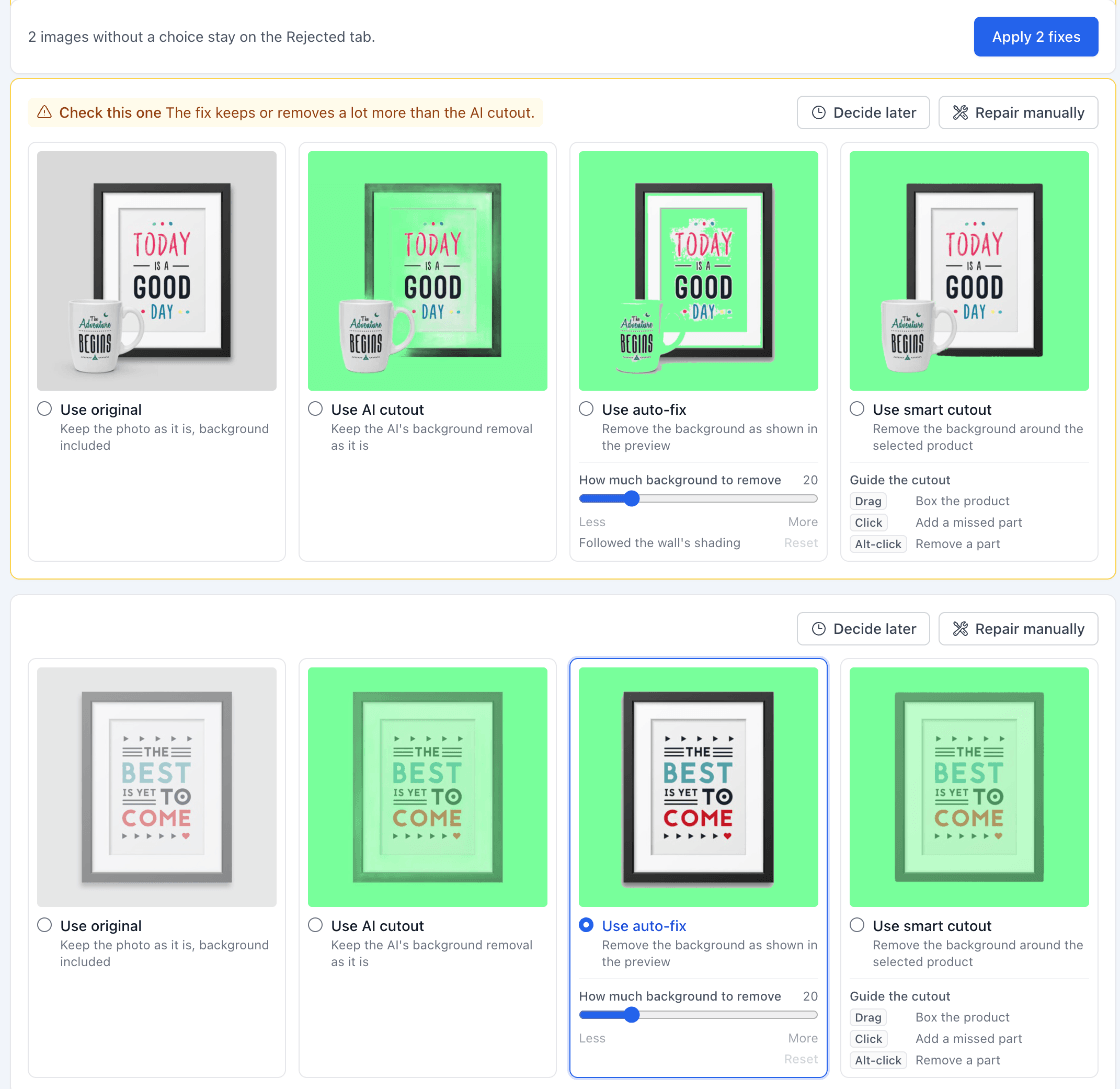
- Use original keeps the photo as it is, background included.
- Use AI cutout keeps the AI's cutout without changes, which approves it.
- Use auto-fix removes the background around the edges of the photo, as shown in the preview. It works best on a plain, even backdrop. If it removes too much or too little, move the How much background to remove slider. Reset takes it back to the default.
- Use smart cutout finds the product in the photo and cuts it out. To guide it, drag a box around the product, click a part it missed, or Alt-click a part it should leave out.
Smart cutouts need Smart select, which you download the first time you use it. Click Download where the smart cutout would be. It's a one-time download, and your browser keeps it.
TIP
When Feedr is confident about a fix, it picks that version for you, and you only need to check it. Rows marked Check this one have no pick yet. The note next to it explains why, for example when the background has more than one color.
Leave an image for later
Two buttons at the top of each row cover the cases where none of the versions works yet:
- Repair manually opens the image in the repair tool after you apply.
- Decide later leaves the image on the Rejected tab as it is, so you can come back to it.
Rows without a choice also stay on the Rejected tab.
Apply your choices
Click the Apply button at the top of the screen, for example Apply 2 fixes. All your choices are saved at once and your feeds update a single time. Images you kept as the AI cutout move to Approved, and the other fixes move to Replaced.
If you marked images with Repair manually, the repair tool then opens with the first of them, and Save and next takes you through the rest.
If an image can't be saved, it stays on the screen so you can try again. If you leave before applying, your choices are lost, and the images stay on the Rejected tab.