
Appearance
How to use the Clients page
The Clients page is your agency's home. It shows every client you manage, how their shops are doing and whether anything needs your attention. Open it from Clients in the menu.
At the top you'll see the total number of shops, feeds and products across your clients.
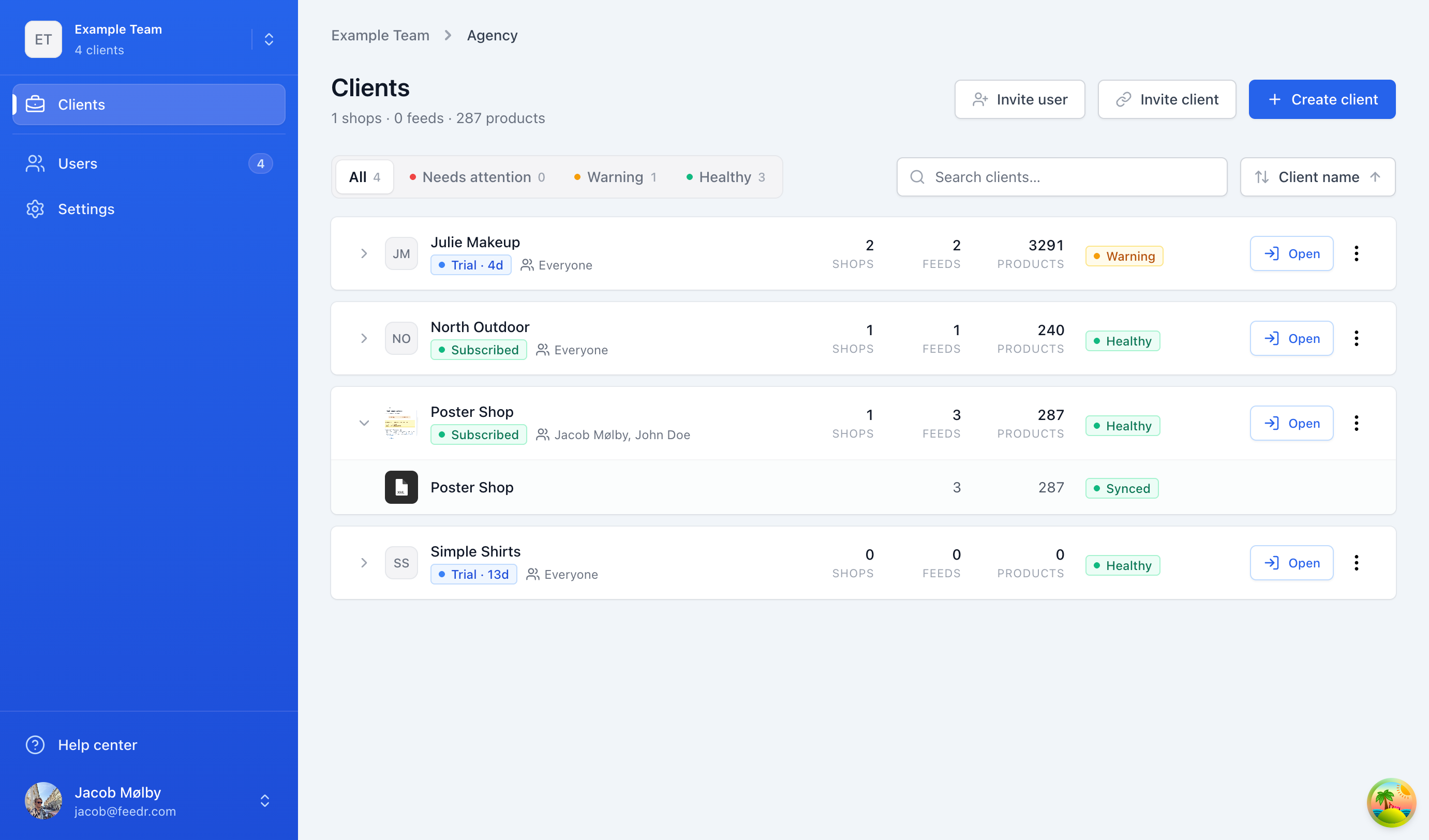
The client cards
Each client is shown as a card with:
- The client's name and logo
- Their subscription status, for example Trial, Subscribed, Past due or Suspended
- Who at your agency has access to the client
- The number of shops, feeds and products
- A health status: Healthy, Warning or Needs attention
Expand a card to see the client's shops. Each shop shows its platform, its number of feeds and products, and whether its products are Synced, Importing, Inactive or have an Error.
What the health status means
| Status | When it's shown |
|---|---|
| Needs attention | The client's account is suspended, or a shop's latest import failed. |
| Warning | The client's payment is past due, or their trial ends within 7 days. |
| Healthy | Everything is running as expected. |
Find a client
- Use the filters All, Needs attention, Warning and Healthy to focus on the clients that need you.
- Type in Search clients… to find a client by name.
- Use Sort by to order clients by name, number of products, shops or feeds, sync health or the date they were added.
Work in a client's account
Click Open on a client card to switch into that client's team. You land on their shops and can work on feeds, templates and everything else, just as if it were your own team. To go straight to a single shop, expand the card and click the shop.
While you work in a client's team, the menu shows Managing next to the client's name, so you always know whose account you're in.

What you can do in a client's account
Through your agency, you can manage all of the client's shops. You can create, edit and delete shops, feeds and templates. You can't see or change the client's billing, and you can't manage the client's users. Only the client's owners can do that.
INFO
If you created the client team yourself, you're also an owner of it. That means you can manage the client's billing and users as well.
Which clients you can see
- Agency owners see every client.
- Agency employees see the clients they have been given access to. See how to choose who can access a client.
If you're not an owner and see No clients shared with you yet, ask an agency owner to give you access to the clients you work on.