
How to review removed backgrounds
The AI gets most backgrounds right, but not all of them. Reviewing lets you catch the misses before they reach your ads. Go to Products, open the Background removal tab and stay on Review images.
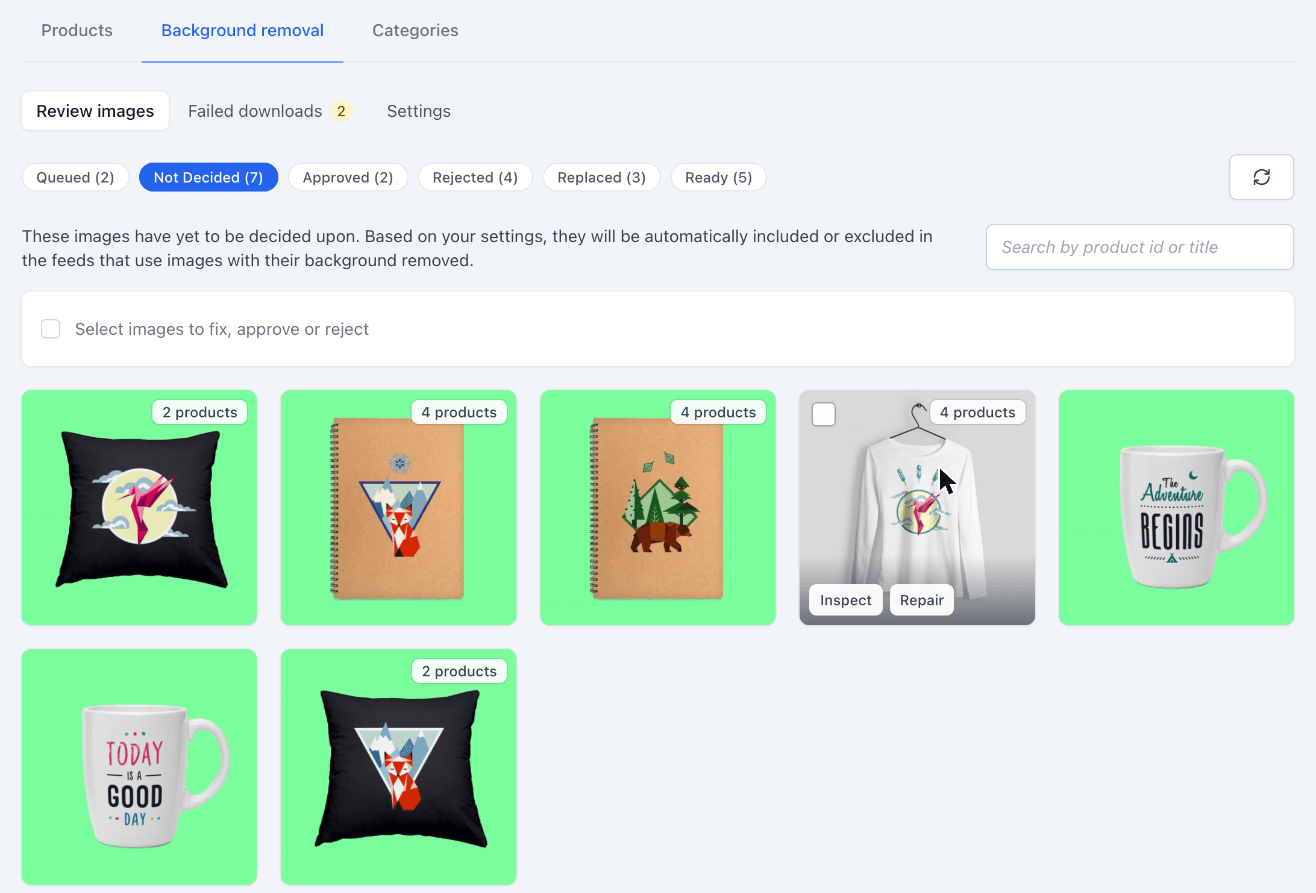
The green behind each product is the part that was removed. Hover an image to see the original photo, along with the Inspect and Repair buttons. A label like 4 products means the photo is shared, and anything you decide applies to all of those products.
The tabs
| Tab | What's in it |
|---|---|
| Queued | Images waiting for their background to be removed. |
| Not Decided | Cutouts nobody has approved or rejected yet. Your default strategy decides whether these are used. |
| Approved | Cutouts you approved. They are always used. |
| Rejected | Cutouts you rejected. Products use the original photo until you fix them. |
| Replaced | Images you fixed, for example with the original photo, an automatic fix or the repair tool. They are used instead of the AI cutout. |
| Ready | Approved and replaced images. These are used whatever your default strategy is. |
Approve or reject images
Tick the images you want to act on, or use the checkbox in the bar to select the whole page. The bar then shows what you can do with them.
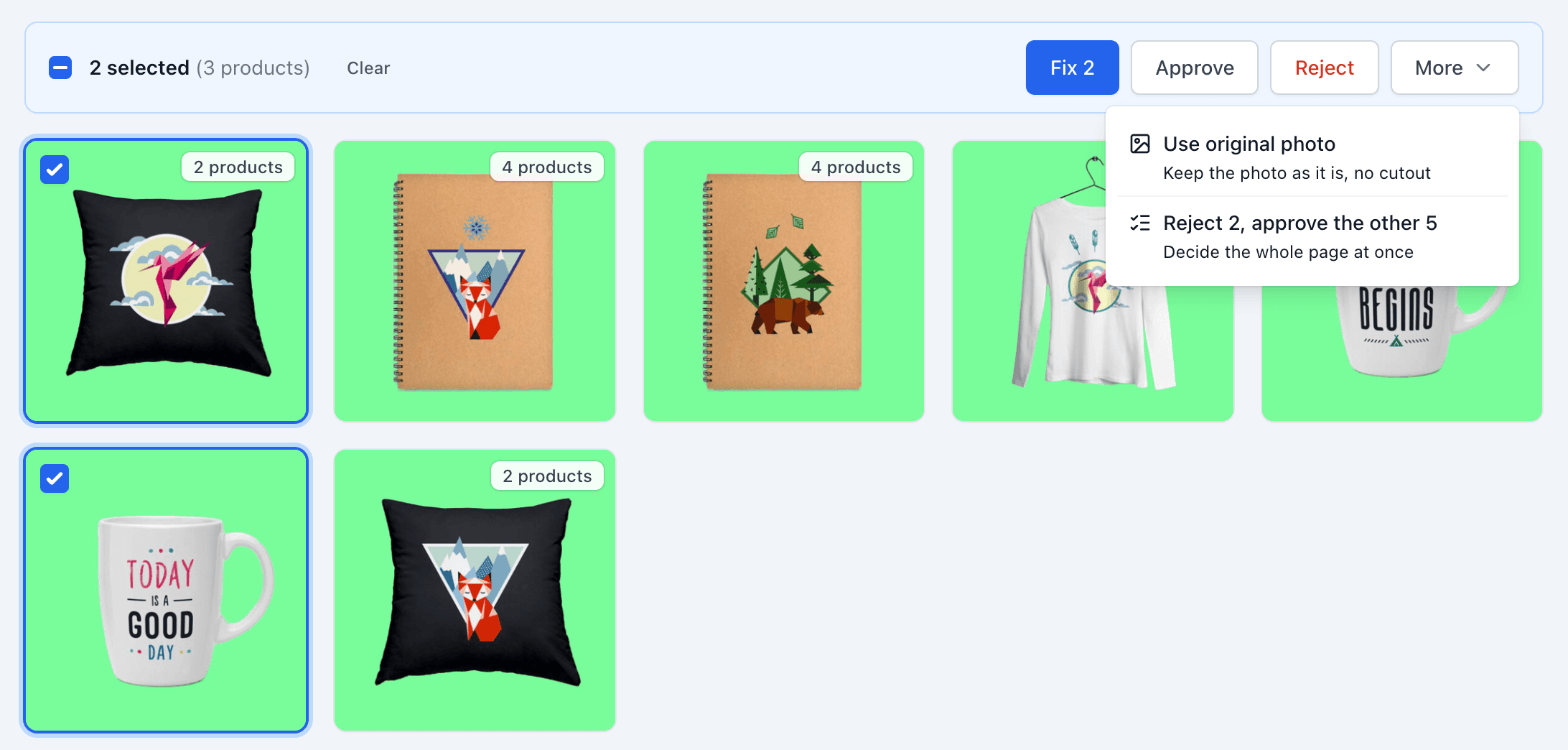
- Fix opens the selected images on the Fix screen. See How to fix rejected images.
- Approve and Reject decide the selected images. The Approved and Ready tabs only offer Reject, and the Rejected tab only offers Approve.
- More, then Use original photo, keeps the photos as they are, background included.
- More, then Reject 2, approve the other 5, decides the whole page in one go. It's only on the Not Decided tab, and it approves the images you haven't selected, including any you haven't looked at.
Inspect an image
Click Inspect on an image to see it large. Drag the handle in the middle to compare the original photo with the AI cutout. Use the arrows at the top to move through the images on the page.
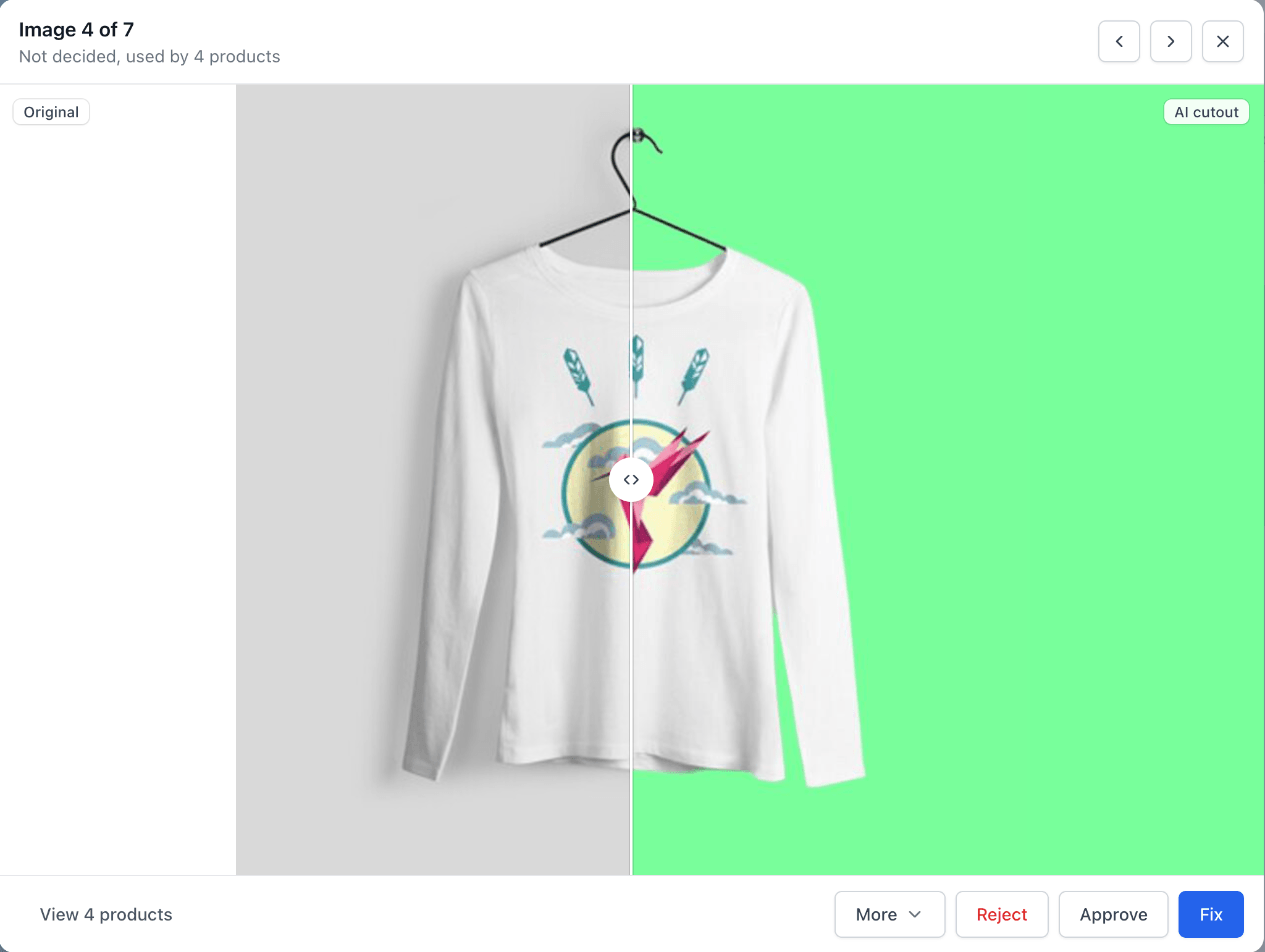
From here you can Approve, Reject or Fix the image, and View 4 products lists the products that use the image. More has a few extra options:
- Use original photo keeps the photo as it is.
- Open in repair tool lets you fix the cutout by hand. See How to use the repair tool.
- Upload your own cutout replaces the image with a PNG you made yourself. It's on the Rejected tab.
- Remove replacement undoes a replacement. It's on the Replaced tab.
Choose the default strategy
The default strategy decides what happens to cutouts that nobody has approved or rejected yet. Open the Settings tab to change it.
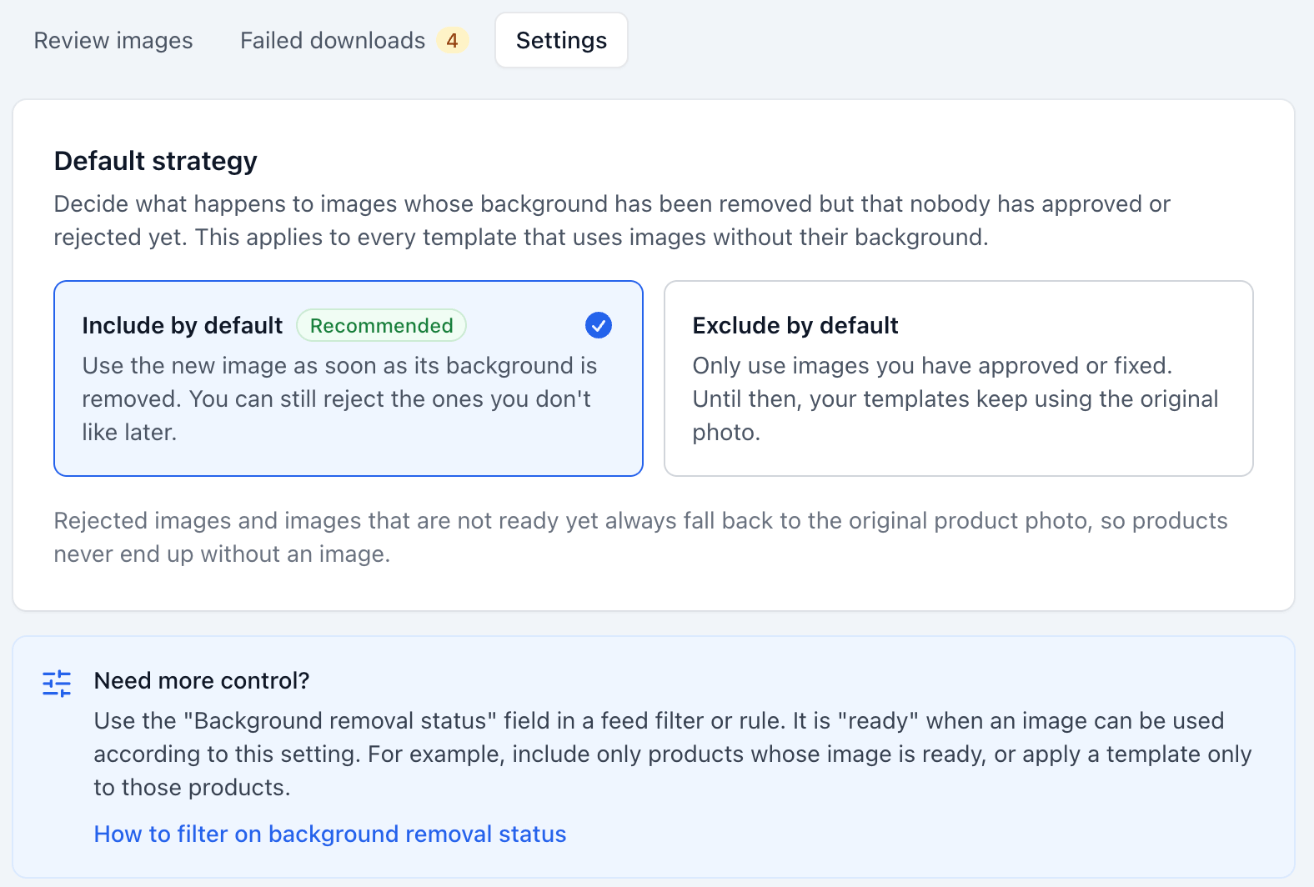
- Include by default uses each cutout as soon as the background is removed. You only need to reject the ones you don't like. This is the recommended setting.
- Exclude by default only uses the cutouts you approved or fixed. Until then, your templates keep using the original photo.
The setting applies to every template that uses background removal. Rejected images, and images that aren't processed yet, always fall back to the original photo.
Run the AI again on rejected images
On the Rejected tab, Retry rejected sends every rejected image back for background removal. Their current versions are removed, and the images wait on the Queued tab until they are processed again.