
How to use the repair tool
The repair tool is for the cutouts that need a human touch: a missing handle, a shadow that should go, the inside of a frame. You select an area of the photo and choose whether to keep it or remove it.
Open the repair tool
- Hover an image on Review images and click Repair.
- Inspect an image, then choose More and Open in repair tool.
- On the Fix screen, mark images with Repair manually and apply.
An image that isn't rejected yet is rejected first, so your feeds use the original photo until you save.
Select, then keep or remove
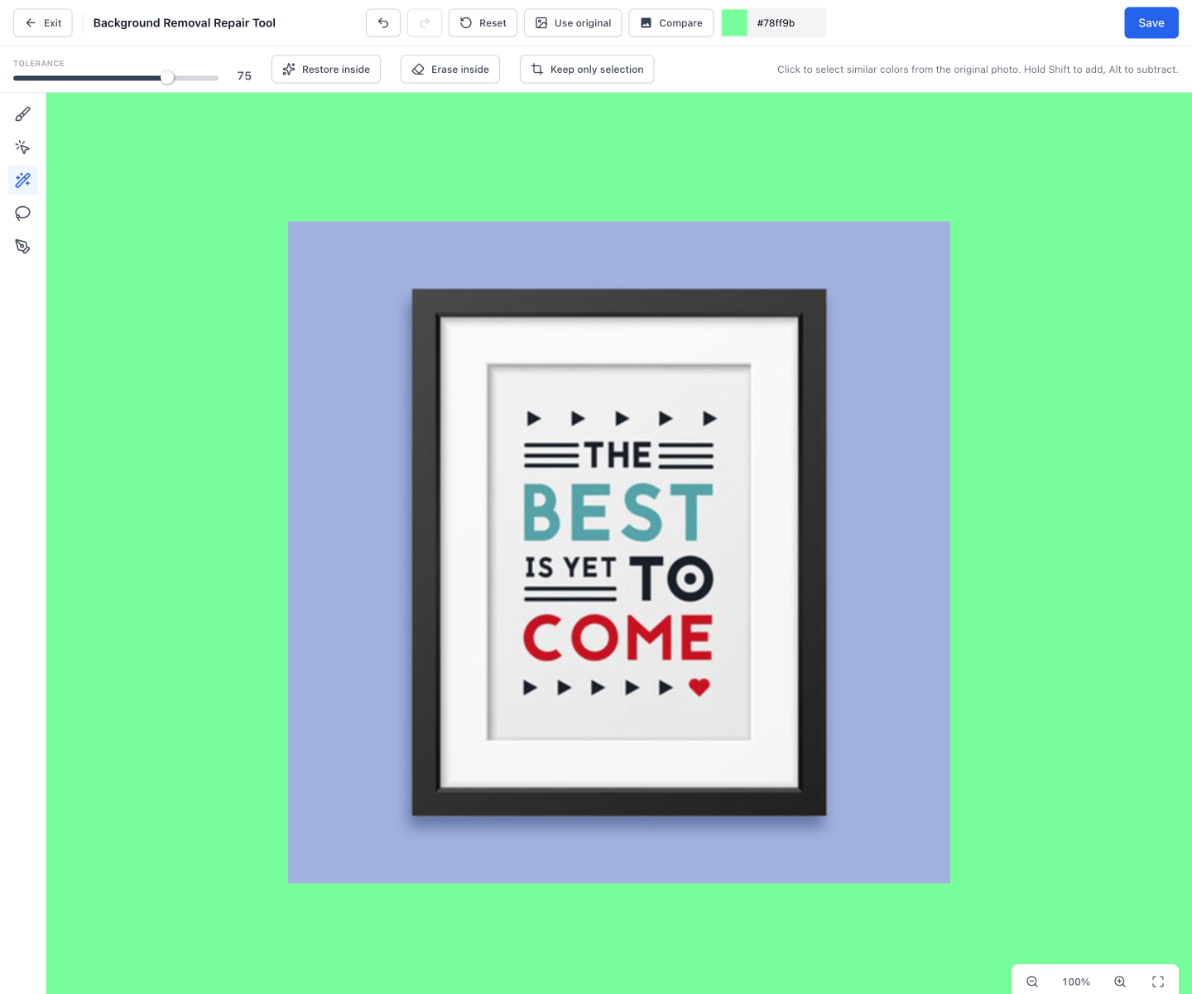
The green shows what's removed. Use the tools on the left to select part of the photo, then use the buttons at the top:
- Restore inside brings back everything inside the selection.
- Erase inside removes everything inside the selection.
- Keep only selection makes the cutout exactly the selection: it restores everything inside and removes everything outside.
Here the AI made the poster's frame and white mat partly see-through. A quick fix for a product on a plain backdrop: click Use original to start from the whole photo, select the backdrop with the Magic wand, and click Erase inside. Raising the Tolerance lets the selection take in the shadow too:

The tools
| Tool | How it works |
|---|---|
| Smart select (S) | Click the product, or drag a box around it, and Feedr finds its outline. The first time, it needs a one-time download. |
| Magic wand (W) | Click to select similar colors in the original photo. Raise the Tolerance to include more shades. |
| Lasso (L) | Click to add points around an area. Click the first point or press Enter to finish. |
| Pen (P) | Click for a corner, or drag for a curve. Click the first point or press Enter to finish. |
| Brush (B) | Paint directly to Restore or Erase. Set the Brush size and Edge softness. Shift-click draws a straight line. |
With the selection tools, hold Shift to add to the selection and Alt to subtract from it. With the brush, press X or hold Ctrl to switch between restoring and erasing.
Other controls
- Undo and Redo step through your changes.
- Reset goes back to the image as it was when you opened it.
- Use original restores the whole original photo, with no background removed.
- Use AI cutout starts over from the AI's cutout. It shows when you opened an image you had already fixed.
- Compare shows the original photo on top, so you can see what was there.
- The color next to Compare sets the background color behind the cutout. Pick one that stands out against your product.
Click Save when you're done. When you came from the Fix screen or the Rejected tab, Save and next saves and opens the next image. The arrows move between images, and ask first if you have unsaved changes.
Keyboard shortcuts
| Key | Action |
|---|---|
| S, W, L, P, B | Smart select, Magic wand, Lasso, Pen, Brush |
| R | Restore inside |
| E or Delete | Erase inside |
| K | Keep only selection |
| X | Switch the brush between restore and erase |
| , and . | Make the brush smaller or larger |
| H | Show or hide the original photo on top |
| F | Fit the image to the screen |
| Space | Hold and drag to move around |
| Ctrl/Cmd + Z | Undo (add Shift to redo) |
| Ctrl/Cmd + D | Clear the selection |
| Ctrl/Cmd + S | Save |