
How to turn on background removal
Background removal cuts the product out of its photo, so a template can place it on your own background. Feedr removes the background with AI and keeps the original photo next to the cutout. Your feeds don't change until a template asks for the cutout.
What gets processed
- The first image of each product. Only Image 1 gets its background removed. A product's other images keep their background.
- Each photo once. When several products share a photo, Feedr processes it once and shows how many products use it.
- Photos that are already transparent are kept as they are.
Turn it on
Go to Products and open the Background removal tab. Click Enable background removal.
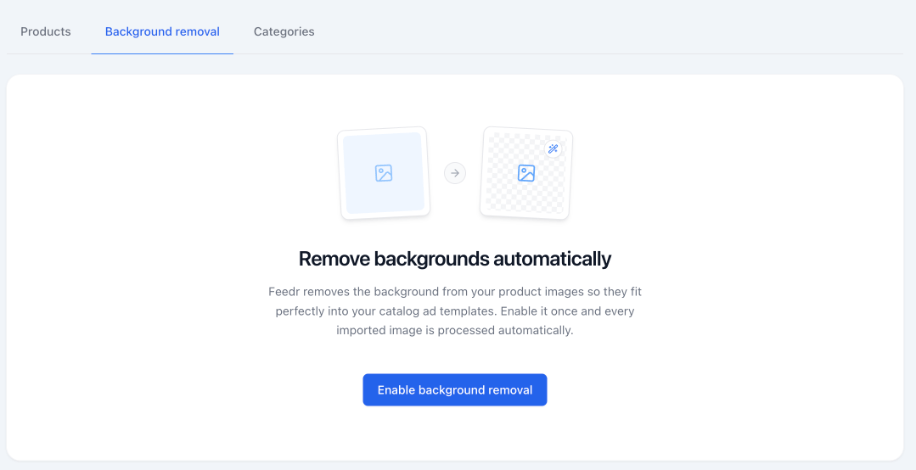
Feedr starts with the images you have already imported, and processes every new image as it's imported. A large catalog can take a while. Until an image is done, it waits on the Queued tab.
You can turn background removal off again in Shop settings, under Background removal.
Next steps
- Use the cutouts in a template. Each image element decides whether it shows the original photo or the cutout.
- Review the cutouts and decide whether new cutouts are used right away or only after you approve them.
- Fix the ones the AI got wrong.
- If some images couldn't be downloaded from your store, fix the failed downloads.