
How to create an OpenAI Feed
This guide will help you get your products from Feedr into ChatGPT shopping.
OpenAI reads product feeds as CSV. Feedr generates the file in the format OpenAI expects, so the work on your side is mapping a handful of fields and handing OpenAI the URL.
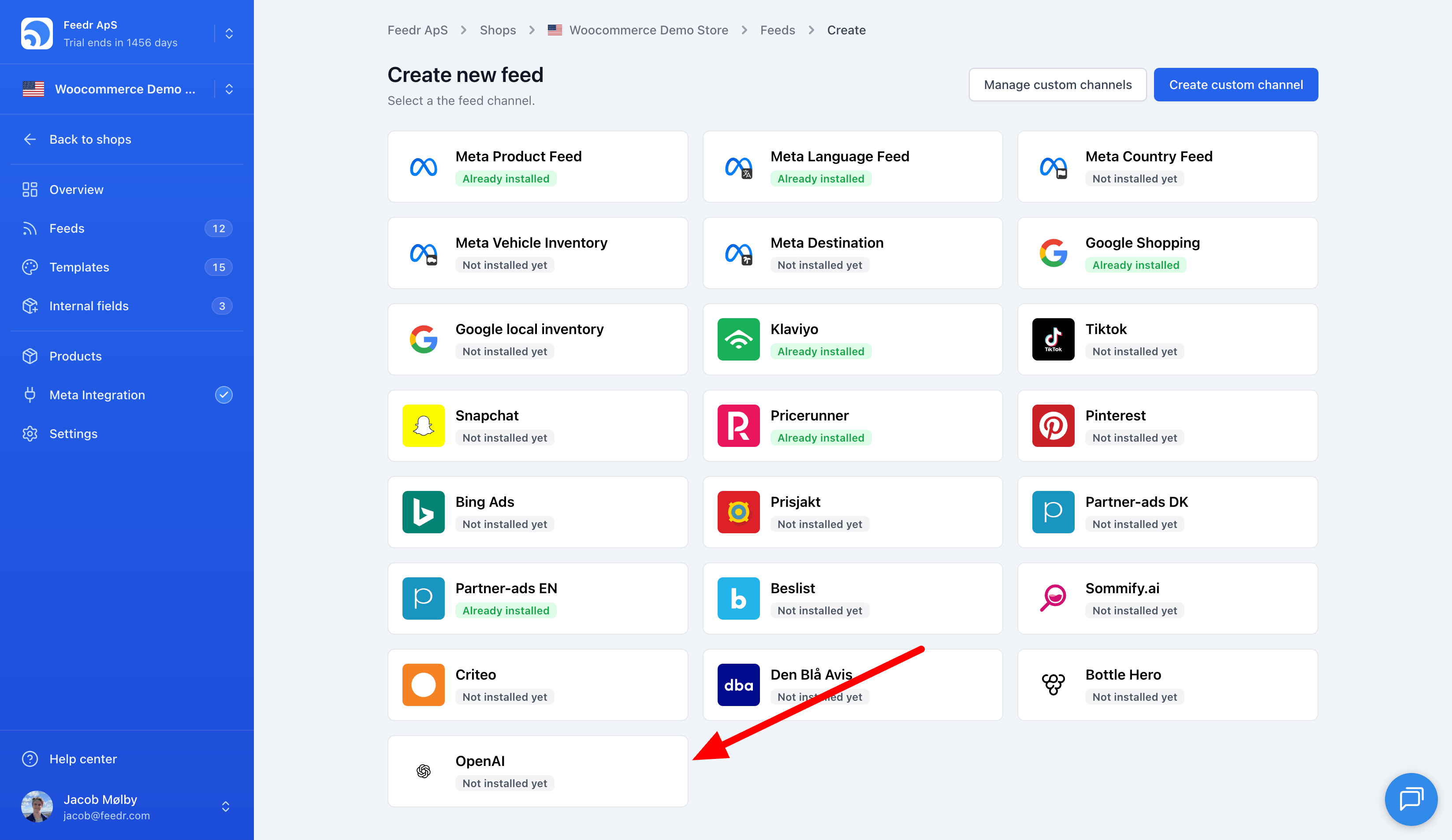
To create a new OpenAI feed, click "New Feed" and pick OpenAI as the channel. Once the feed exists, open it and follow the connection guide on the feed page.
1. Map the fields that are not product data
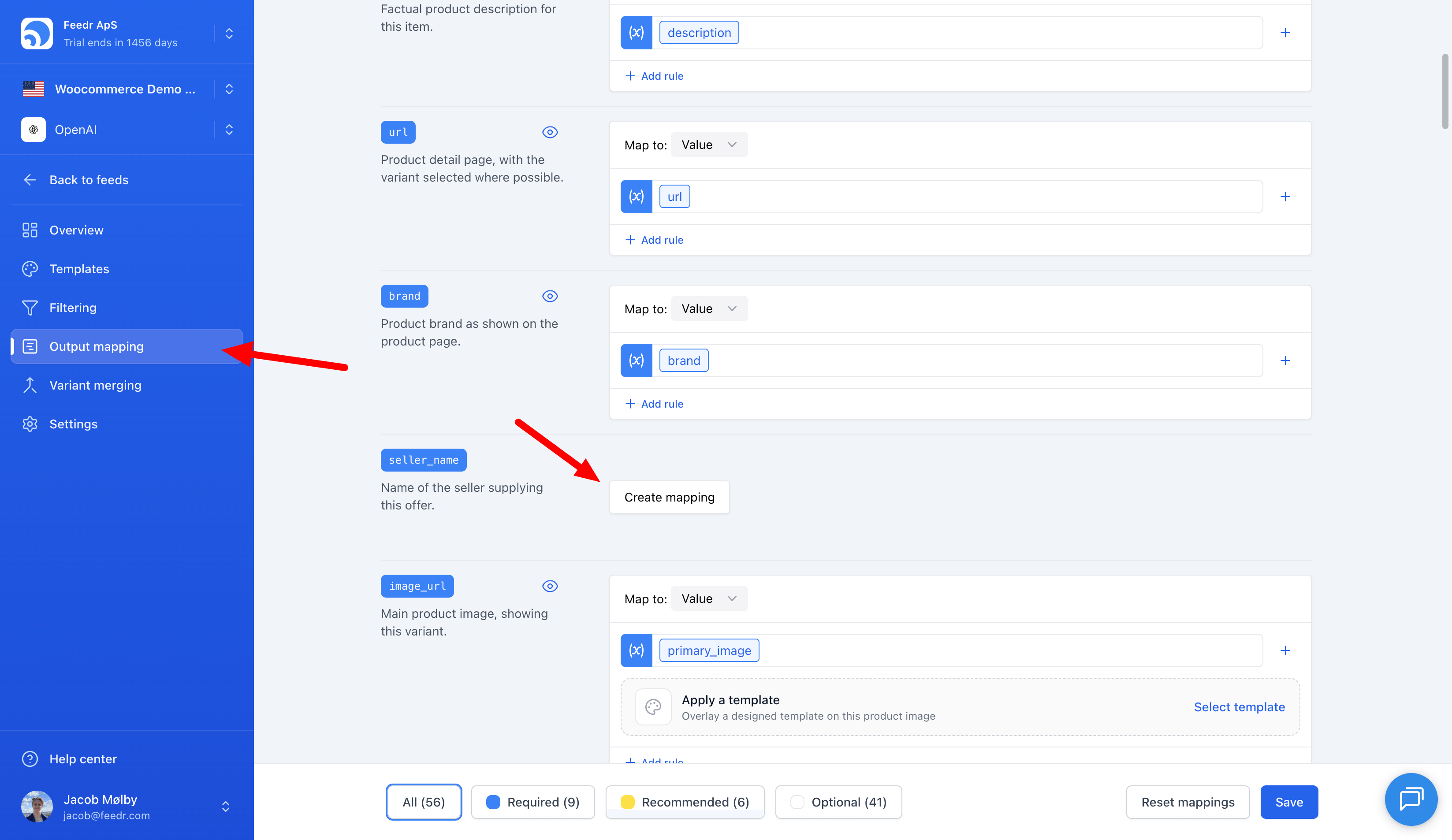
Most of the feed maps from your product data as usual. A few fields describe your store rather than a product, so map them as static values:
seller_nameis required on every row and is the same for your whole store.
Search eligibility is on by default, so for search you do not need anything else. If OpenAI has enabled checkout for your store, also set:
is_eligible_checkoutseller_privacy_policyseller_tos
All three are static values. Do not set is_eligible_checkout unless OpenAI has actually enabled checkout for you.
2. Register the feed URL with OpenAI
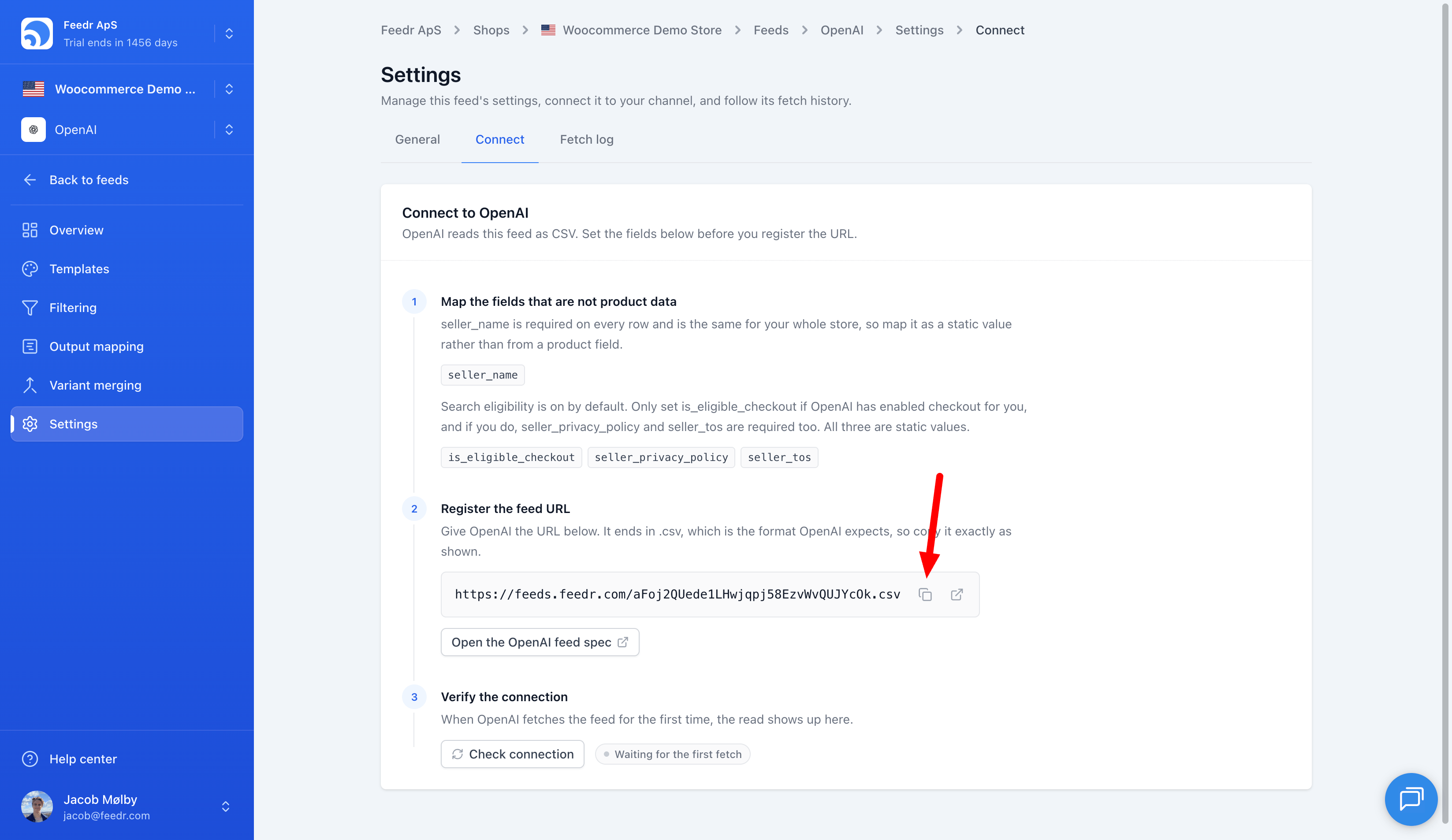
Copy the feed URL from the connection guide and give it to OpenAI. The URL ends in .csv, which is what OpenAI expects, so copy it exactly as shown rather than editing it.
The full field reference lives in OpenAI's product feed spec.
3. Verify the connection
When OpenAI fetches the feed for the first time, the read shows up on the feed page and the step completes on its own. If you want to check sooner, use the "Recheck" button in the guide.
Using templates on the OpenAI feed
The OpenAI channel supports Feedr templates, the same as Google and Meta. The main product image maps to image_url and any further images map to additional_image_urls, so you can apply a template to the images you send OpenAI and preview the result in Feedr before it goes out.
Read more about applying a template to a feed.